Redmine Cases
What is Redmine for
- Redmine will be used for incident management
- When a case in Elastic requires deeper investigation and is/potentially is malicious, escalate to Redmine
NOTE
- Make sure to add in a comment within the Elastic Case about the need to escalate incident
-
Redmine has three project areas that different parts of the team will work
- Intel Support: Where you will submit issues (such as RFIs) to intel
- Investigations: Where team will tackle events/incidents that members have escalated
- W/S Support: Where you will submit trouble-tickets for CYOC member to address
-
For operators, the “Investigations” and “Intel Support” sections are where you will mostly work
Creating Redmine Case: Starting in the Elastic Case
- Begin by scrolling to the bottom of the specific Elastic Case
- In the External incident management system, click on the No connector selector and change it to Redmine
- Once the connector is defined, click on the Push as Redmine incident
- Current As Of: 16 April 2024
- A fetching error will display at this point. It is a bug in the system. DO NOT click on Push as Redmine incident again. The case will have escalated appropriately already
- Current As Of: 16 April 2024


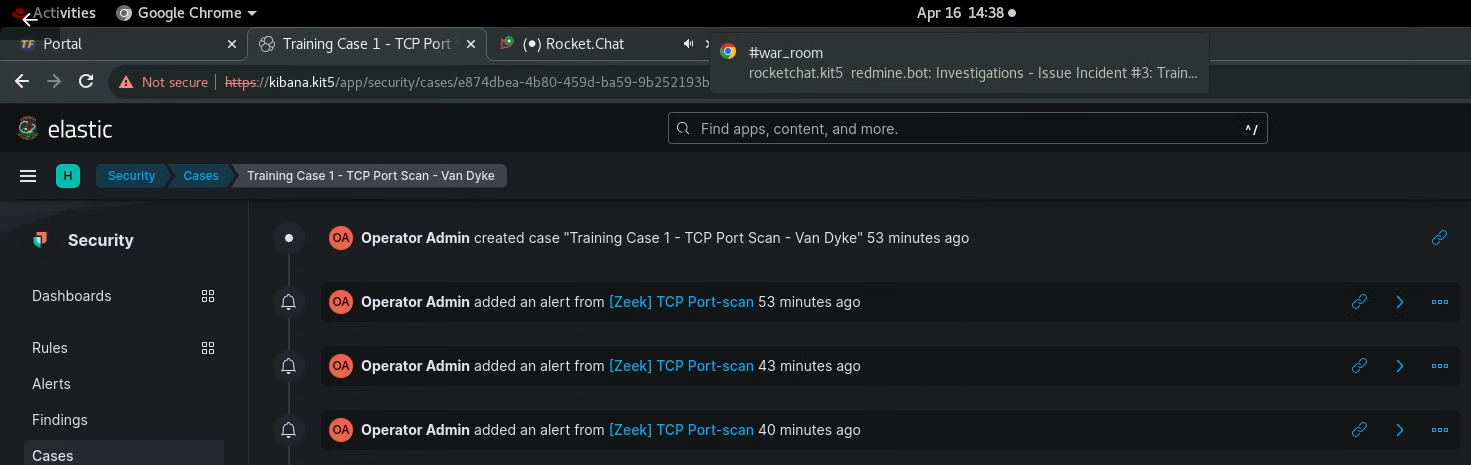
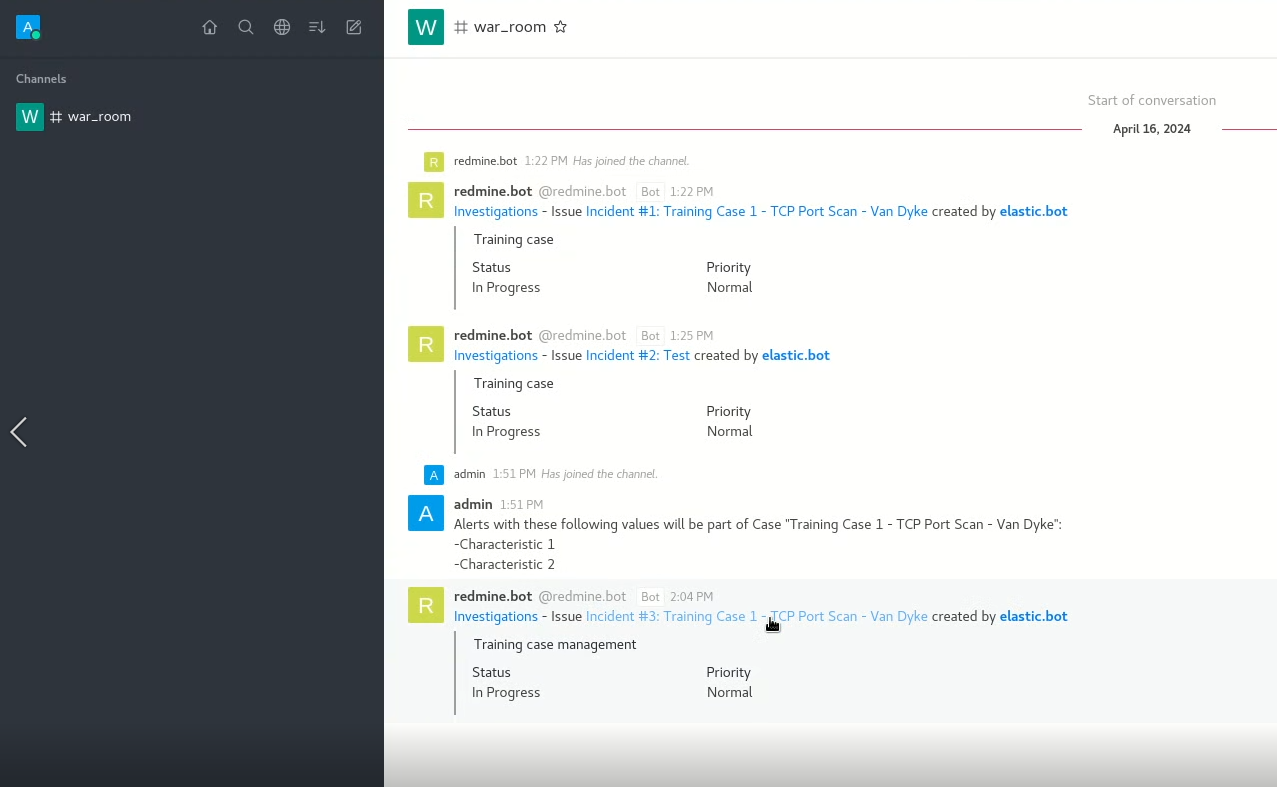
Connector pushes to Rocketchat
- Can validate by checking Rocketchat #war_room comment has automatically been made
Creating an issue in Redmine
- This is how you can create a new ticket in Redmine, or request support from Intel and the W/S Support teams
- Teams will use this to create a dedicated ticket in Redmine that isn't based off an alert in Elastic
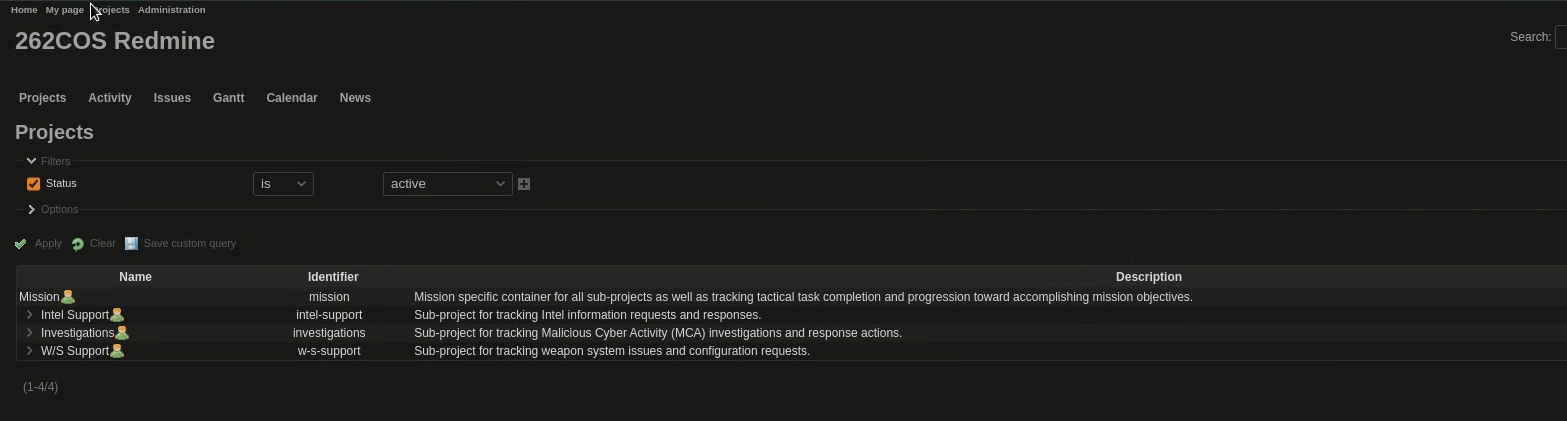
- Begin by selecting the appropriate project
- Intel Support, Investigations, W/S Support
- Select the + in the upper-left corner and select New Issue
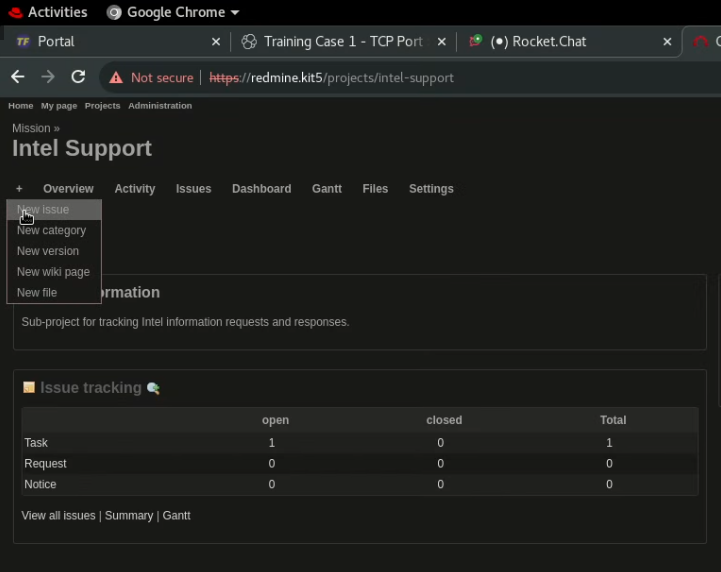
- On the following page:
- Ensure the appropriate project group is selected
- Define what kind of Tracker it is
- Investigation: Tasks or Incidents
- Intel: Tasks, Requests, or Notices
- W/S Support: Tasks, Requests, or Notices
- Clearly define the subject
- Analyst Last Name - Characteristic
- In the description section:
- For Intel Support and W/S Support: Define clearly what the request/ask is for and the desired outcome
- For Investigations: Same requirements as a normal ticket
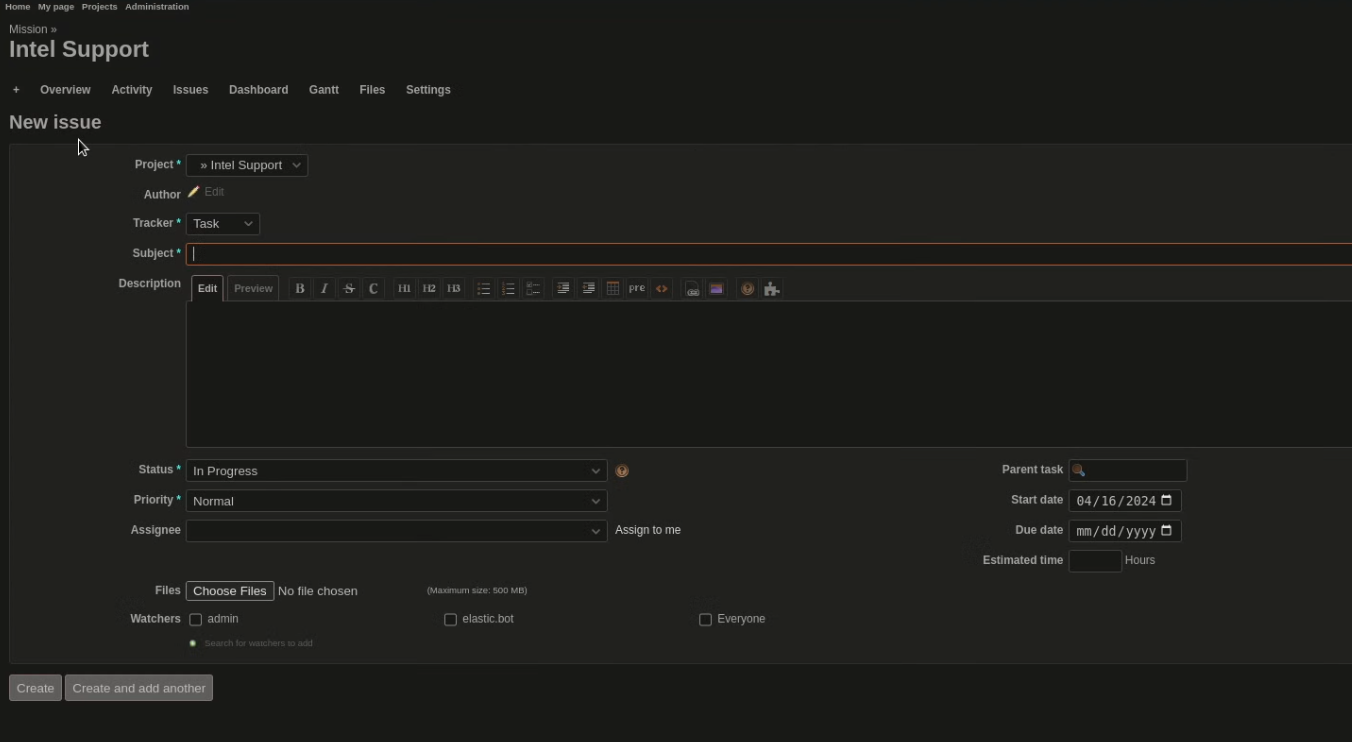
NOTE
- Subject section should match Elastic Cases
- Description is a short note on what is being investigated
- Notes is for deeper analytical notes
Working an existing Redmine Case
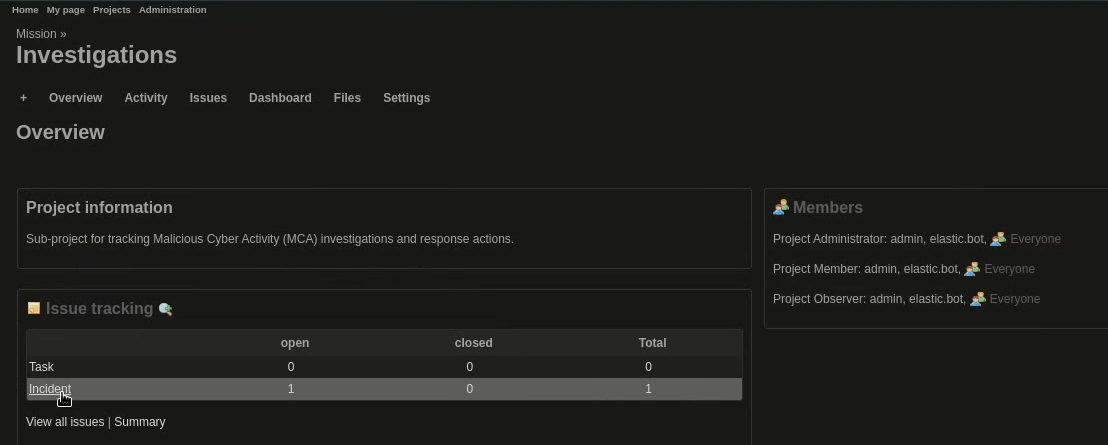
- Select Projects > Investigations > Incidents
- The newly escalated Elastic Case should be present
- Click on the title of your case to review and make changes

The Notes Section of a Redmine Case
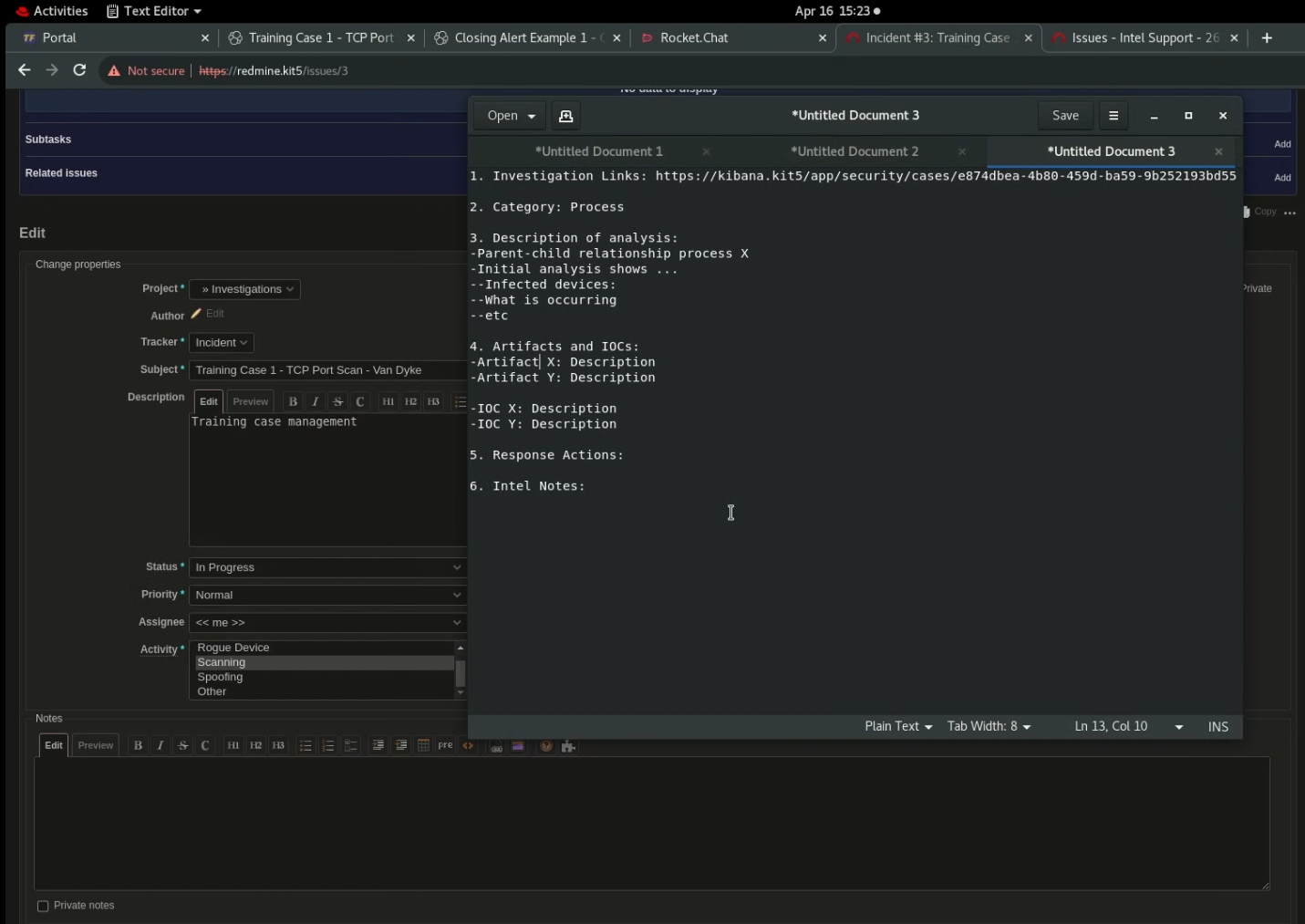
-
Should at minimum have the following:
- Investigation Links
- Category: Process, File, Network, or User
- Description of analysis
- Artifacts and IOCs
- Response Actions
- Intel Notes
-
Under the Files section, you are able to add artifacts and files to the Redmine Case
NOTE Make sure to remove the executable ability of malicious/potentially malicious artifacts and to de-fang web links
-
Once all your additions/modifications are done, select Submit
-
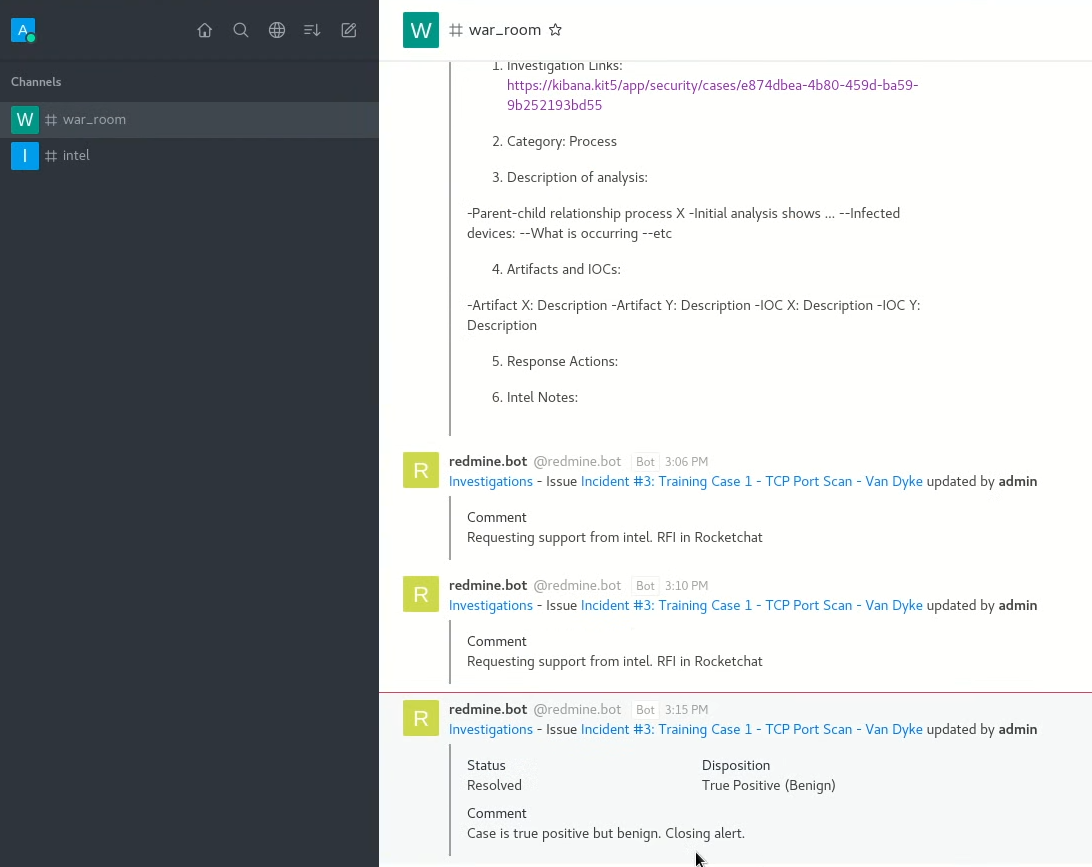
Comment will automatically be populated in Rocketchat channel #war_room
- Validate each time you update case
Example Redmine Case
RFI to Intel
-
When requesting Intel Support:
- Ensure you place a comment in the Redmine Case, defining the potential need
- #war_room will automatically populate a comment once you have done this. This is important for reconstructing timeline of events
- Ensure you place a comment in the Redmine Case, defining the potential need
-
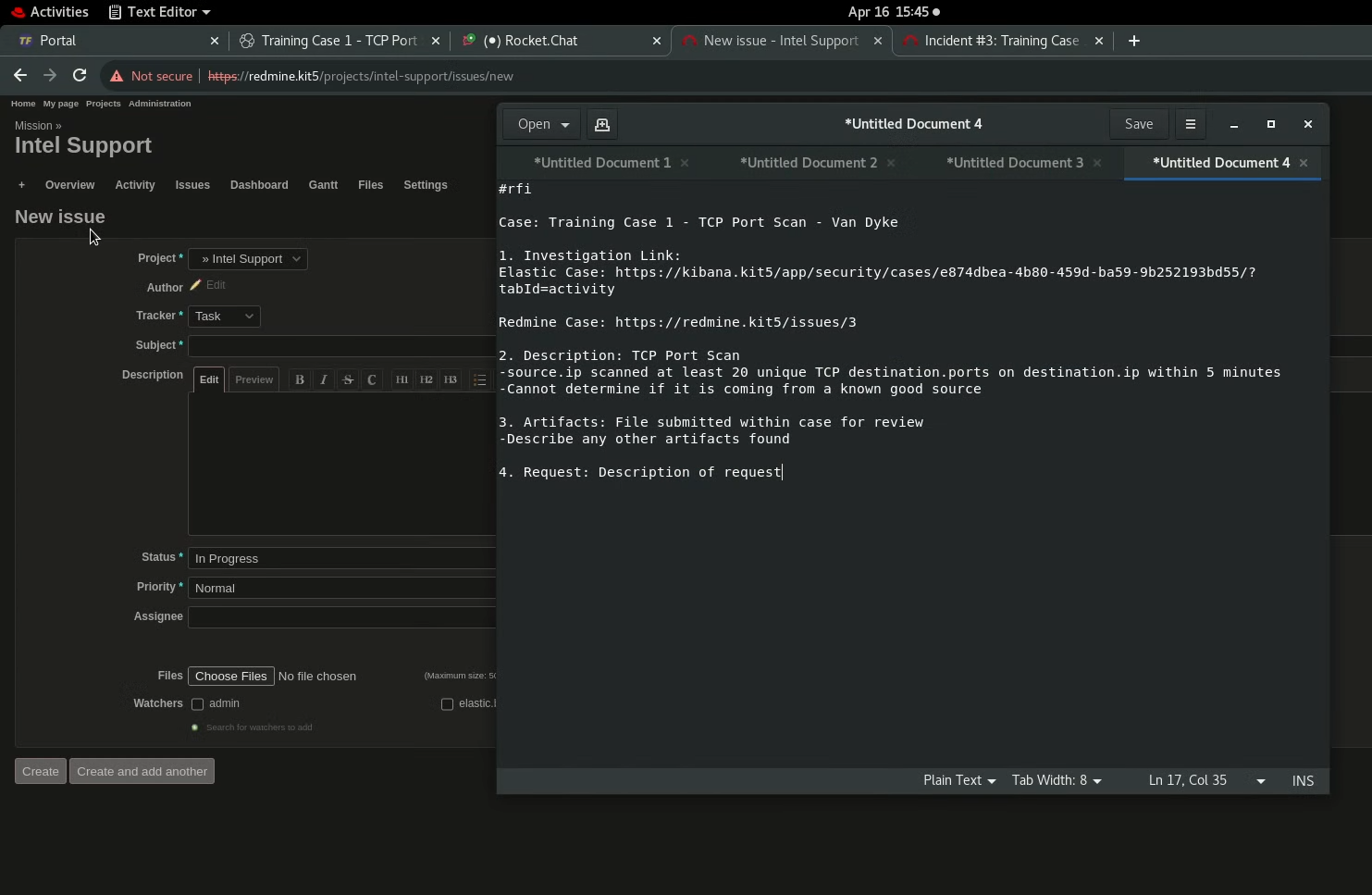
Create an Issue in the Intel Support project in Redmine
- In the upper-left, you’ll see a + sign
- Select this, then New Issue
-
Within the new issue, ensure that you define the following:
Name of Case
- Investigation Links
- Short description of events
- Short description of artifacts
- Description of requested need
-
Redmine will automatically push a comment to the #intel channel
- Validate that your issue follows appropriate communications contract
Closing a Redmine Case
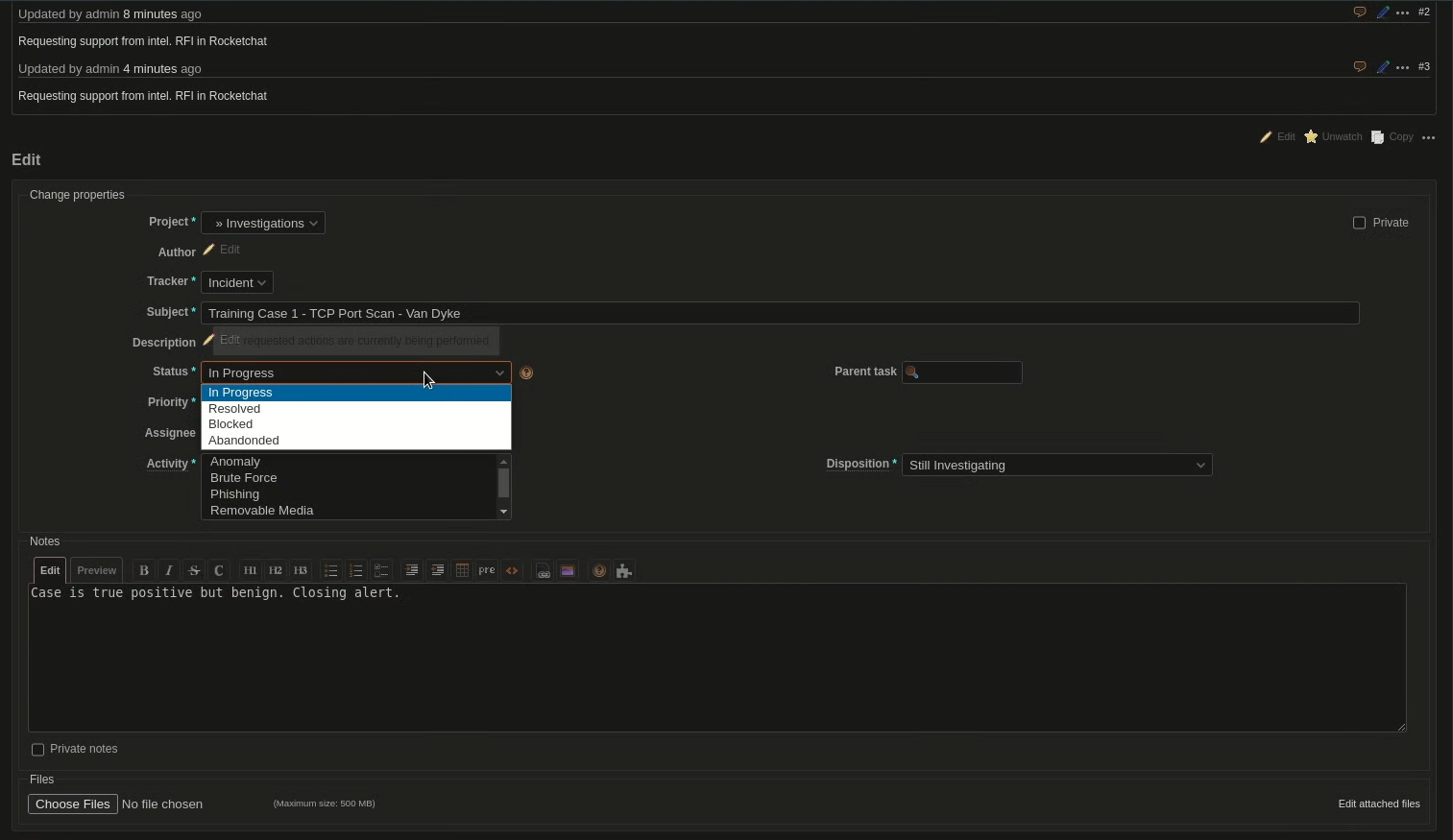
- To close the Redmine Case
- Add a comment of the end result of the investigation
- Change the “Status” and “Disposition” to whatever is appropriate
- Status options are: Resolved, Blocked, Abandoned
- One of these options need to be selected for case to close after submission
- Once submitted, will populate in the Rocketchat #war_room channel