PowerShell Remoting
PowerShell remoting requires that the remote host have PowerShell installed and the WinRM service (5985/TCP[HTTP] or 5986/TCP[HTTPS]) accessible over the network.
PS Remoting can be used to execute commands, as well as transfer files over WinRM (without SMB).
Preparation
Step 1: Enable PS Remoting
This step only needs to be accomplished once to initially configure the system you will be initiating remote PowerShell connections from.
Enable-PSRemotingenables PowerShell remoting on the computer by performing a series of configuration tasks on the host. Most of these tasks are not needed for the purpose of connecting to other remote hosts, except for the creation of theWindows Remote Management (HTTP-In)firewall rule - this rule is not functionally needed, but Windows checks for its existence before allowing any remote PowerShell interactions regardless of the actual state of the firewall.Set-Item "WSMan:\localhost\Client\TrustedHosts" -Value "*"allows the computer to establish WinRM connections to any remote host, otherwise Windows will prevent the outbound connection. This is only necessary when a host such as the MIP Win10 VM, attempts to establish a remote PowerShell session with a remote host in another domain or directly to an IP address.
-
Open a administrative PowerShell ISE console
-
First, enable PS Remoting:
Enable-PSRemoting -Force
Set-Item "WSMan:\localhost\Client\TrustedHosts" -Value "*" -Force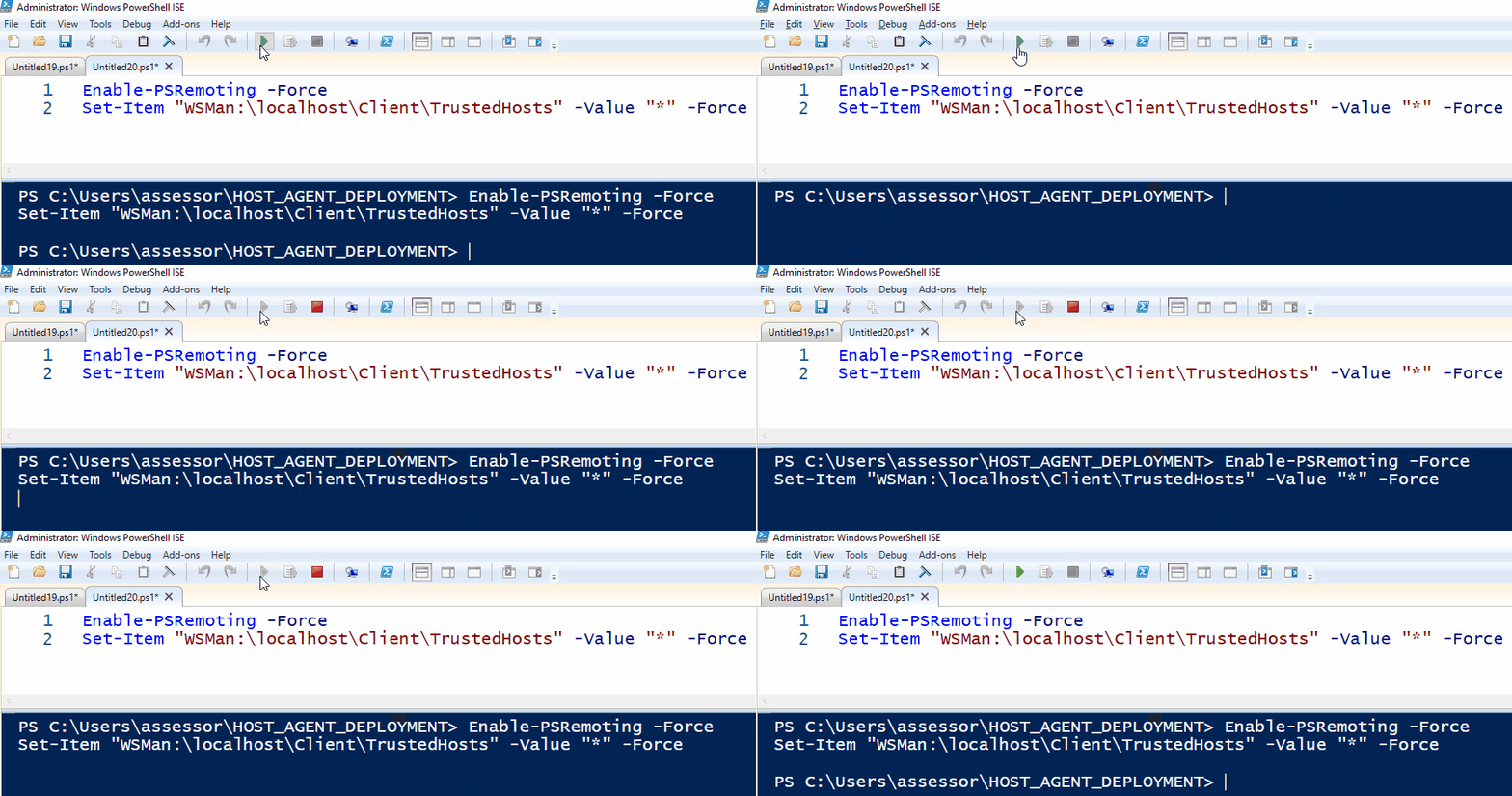
Step 2: Save Credentials
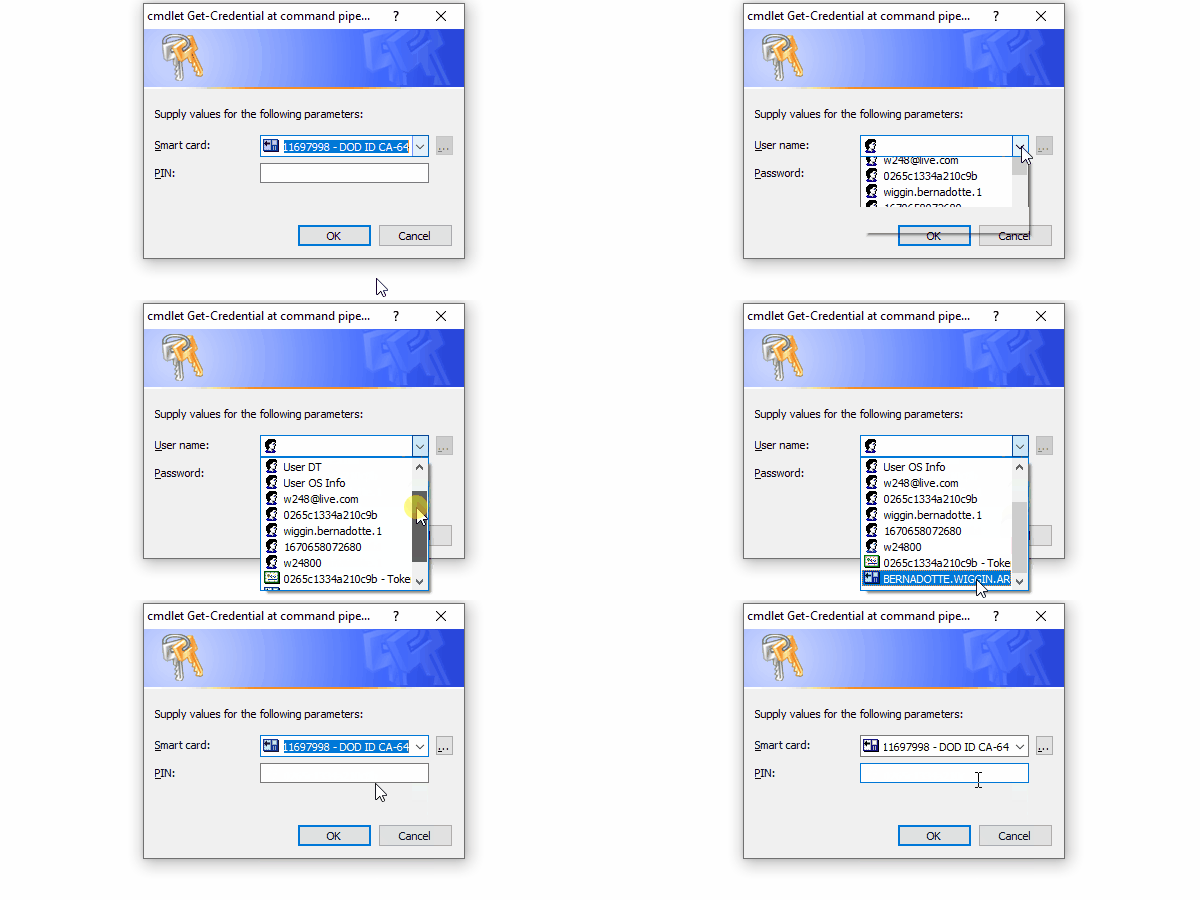
Domain usernames need to be input in either <DOMAIN>\<USERNAME> or <USERNAME>@<DOMAIN> format. Leaving out the domain portion will make the remote host assume that you are attempting to authenticate with a local user account.
The Get-Credential cmdlet can also handle the usage of CAC credentials:
-
Save credentials in a re-usable variable object:
$Credential = Get-Credential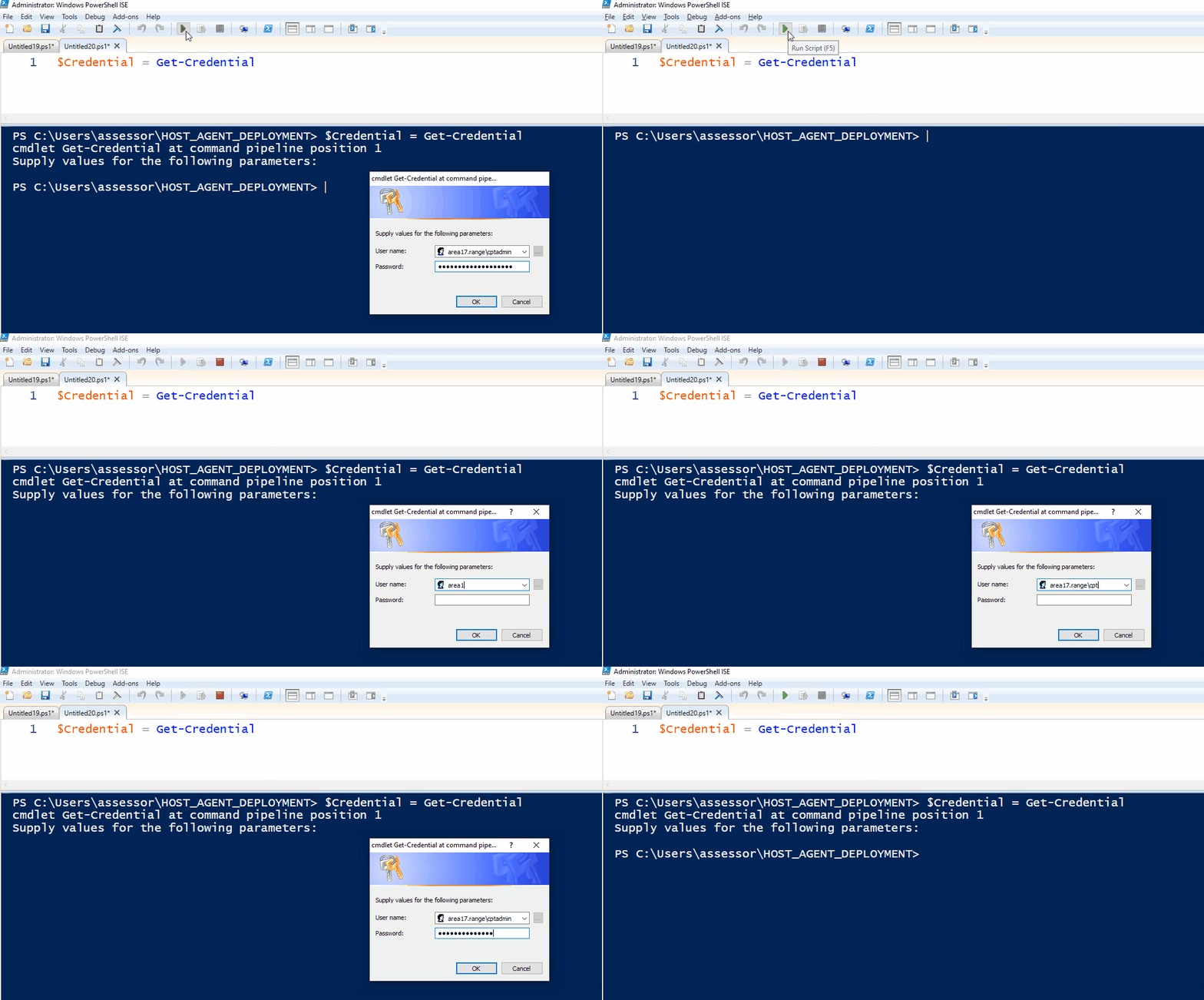
Step 3: Test PS Remoting and Credentials
-
Test accessibility to WinRM and credentials on the target host:
$Target = '<IP/FQDN>'
Test-WSMan $Target -Credential $Credential -Authentication Negotiate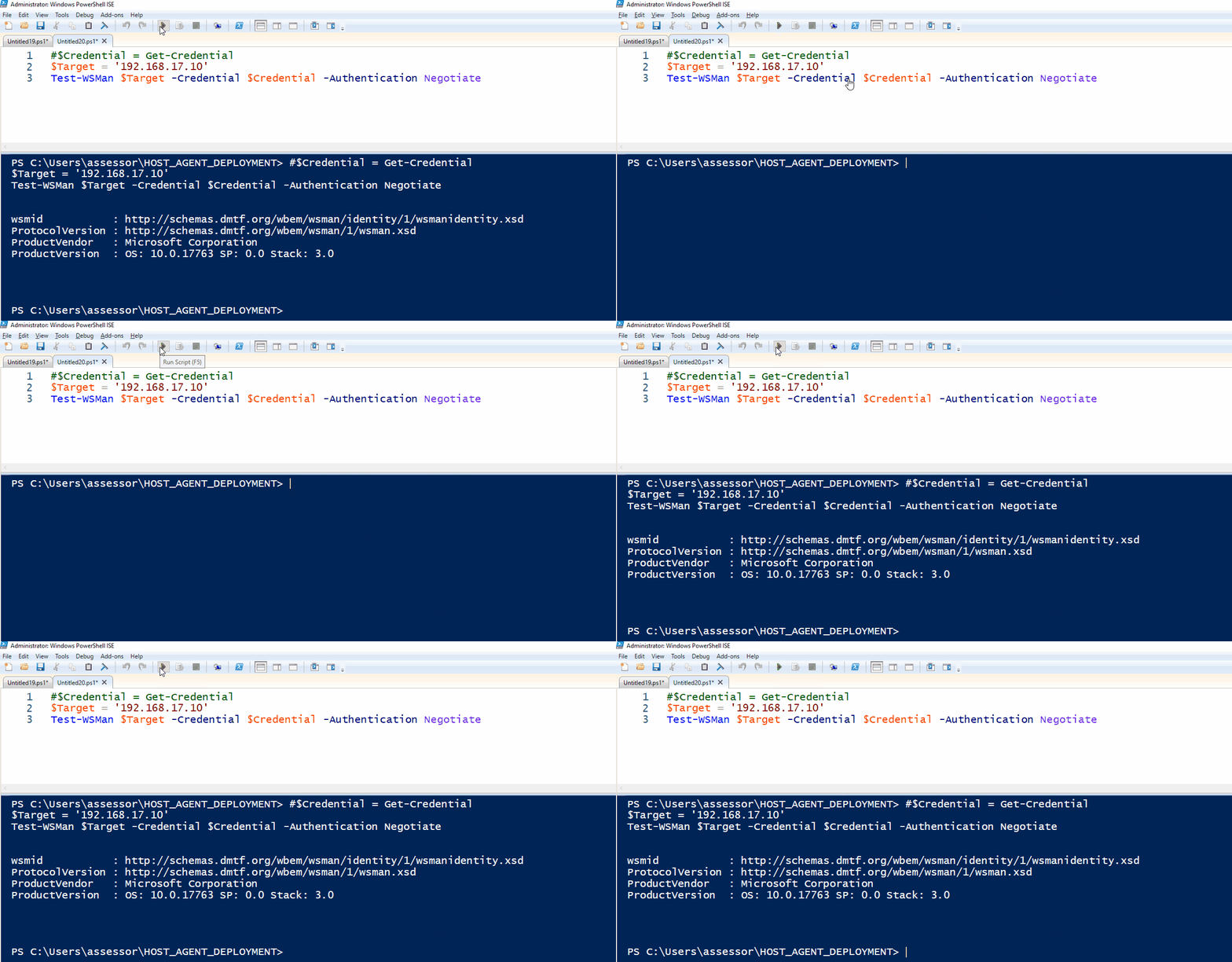 Troubleshooting: Test-WSMan
For some remote hosts, you may need to provide the
-Authentication Negotiateoption (or some another-Authenticationvariation) to specify you authentication schema. Also, the fact that this error was even returned indicates that the remote host does have WinRM accessible.Missing
-Authenticationflag error: Troubleshooting: Access Denied
An
Access is deniederror indicates that the remote host does have WinRM accessible, but either the credentials are incorrect or the user legitimately does not have permissions to perform network logons on the remote host.Access is deniederror:
Step 4: PSSession Creation
The $PSSession variable can be used and re-used to execute remote commands/scripts, dive into interactive shells, as well as to copy files.
-
Establish a remote PowerShell session and save it to a re-usable variable object:
$SessionOption = New-PSSessionOption -MaximumReceivedObjectSize 1GB -OperationTimeout 0
$PSSession = New-PSSession -ComputerName $Target -Credential $Credential -SessionOption $SessionOptionNew-PSSessionOption-MaximumReceivedObjectSizeallows you to transfer files larger than the default value of200MB-OperationTimeout 0prevents PowerShell from killing your command/file transfer if it take longer than the default180000milliseconds (3 minutes)
Cleanup Unused SessionsIn order to not leave open hanging PS sessions, cleanup after yourself with this command:
Remove-PSSession $PSSession
Command Execution
Interactive Remote Shell
-
Interacting with the remote PowerShell session:
Enter-PSSession $PSSession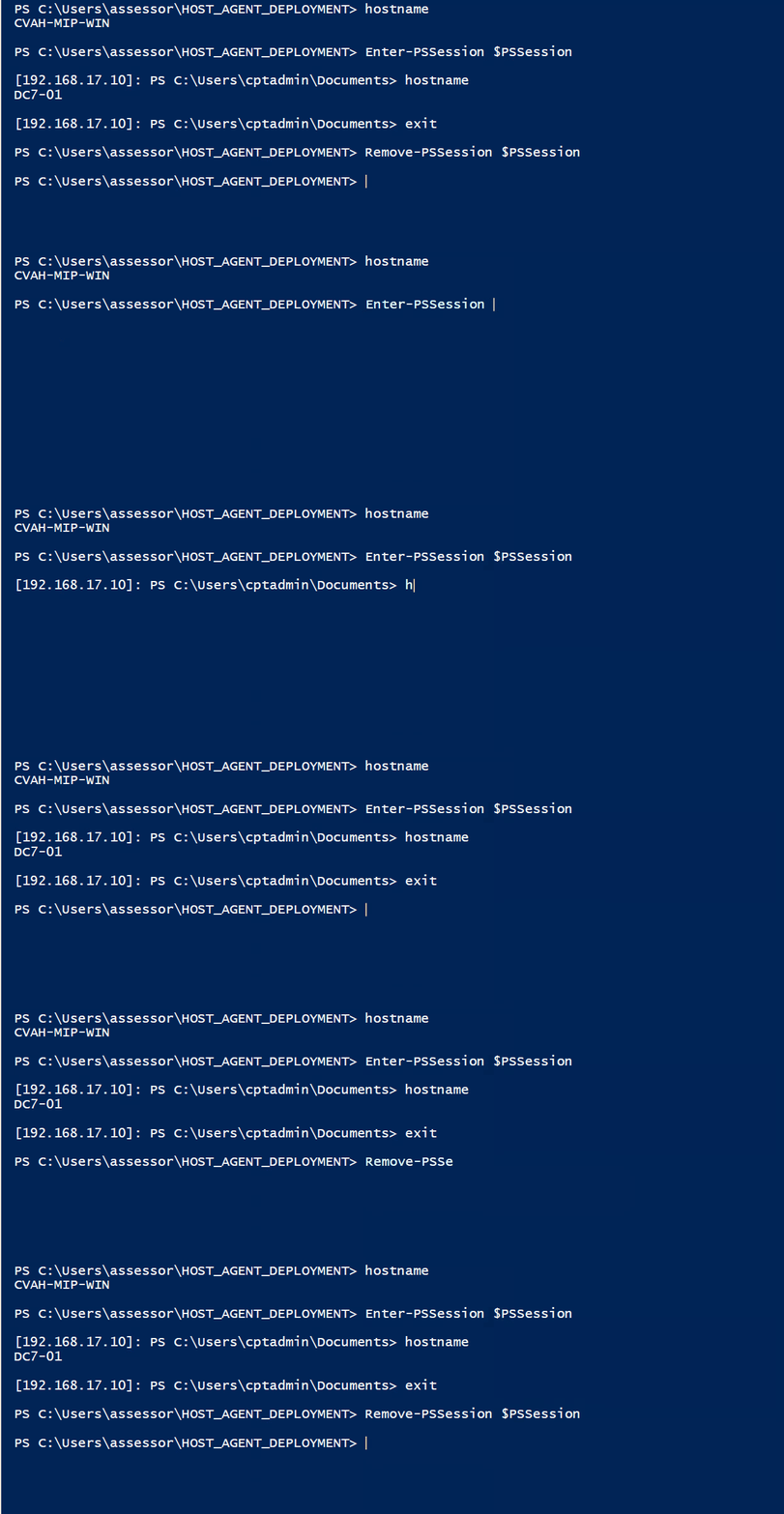 tip
tipWhile in a remote interactive PowerShell session, just enter
exitto drop out of the session.
Non-Interactive Remote Command Execution
Invoke-Command usage is simple for executing remote PowerShell commands:
Invoke-Command -Session $PSSession {
    <COMMANDS>
}
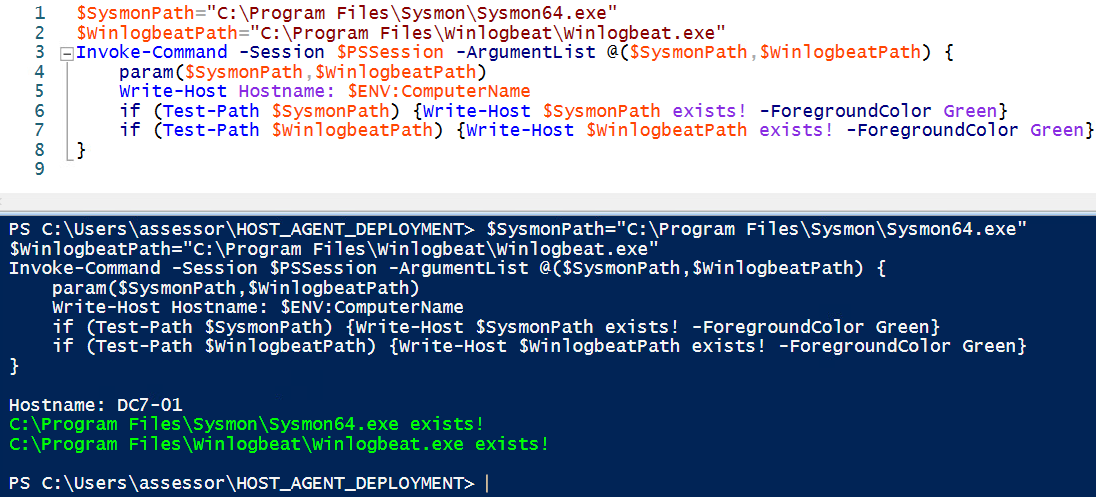
The -ArgumentList option can be used to pass in arguments as if the Invoke-Command scriptblock were a function. This is useful since variables within your local PowerShell session do not cross over to the remote session, and vice-versa. For example:
$SysmonPath="C:\Program Files\Sysmon\Sysmon64.exe"
$WinlogbeatPath="C:\Program Files\Winlogbeat\Winlogbeat.exe"
Invoke-Command -Session $PSSession -ArgumentList @($SysmonPath,$WinlogbeatPath,42) {
    param($SysmonPath,$WinlogbeatPath,$SomeRandomNumber)
    Test-Path $SysmonPath
    Test-Path $WinlogbeatPath
    Write-Host $SomeRandomNumber
}
NOTE: The ordering of the
-ArgumentListarguments directly corresponds to the ordering of the recievedparam()arguments within the scriptblock
File Transfer
Copy-Item can use a PSSession to transfer items to (-ToSession) or from (-FromSession) remote hosts:
File Upload
Copy-Item -ToSession $PSSession -Path .\Sysmon64.exe -Destination "C:\Program Files\Sysmon\"
File Download
Copy-Item -FromSession $PSSession -Path "C:\Windows\Temp\malware.exe" -Destination .\