PSDrive
PSDrives require that the remote host have SMB (445/TCP[SMB] or 139/TCP[NetBIOS-SSN]) accessible over the network.
PSDrives are effectively SMB shares mounted through PowerShell - but they are only accessible through that specific PowerShell session.
Preparation
Step 1: Save Credentials
Domain usernames need to be input in either <DOMAIN>\<USERNAME> or <USERNAME>@<DOMAIN> format. Leaving out the domain portion will make the remote host assume that you are attempting to authenticate with a local user account.
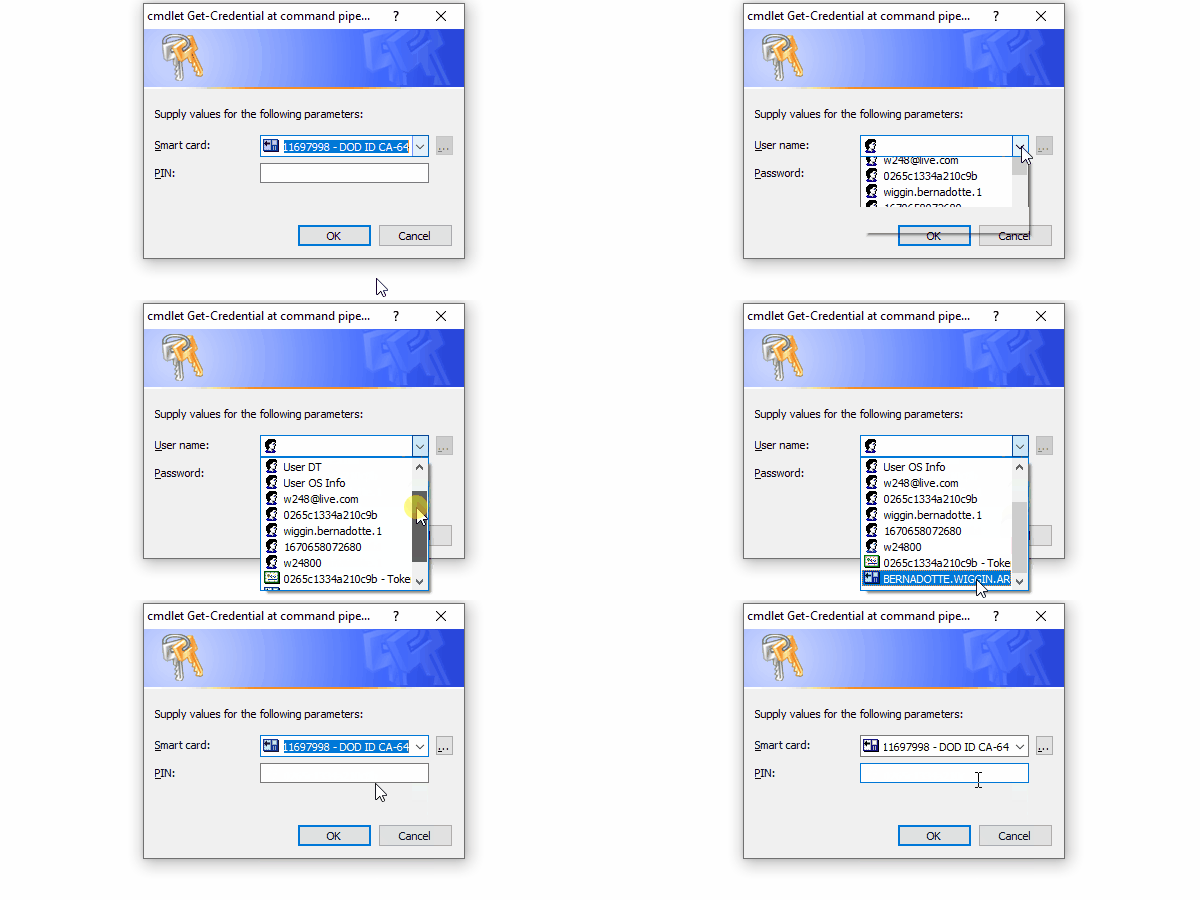
The Get-Credential cmdlet can also handle the usage of CAC credentials:
-
Save credentials in a re-usable variable object:
$Credential = Get-Credential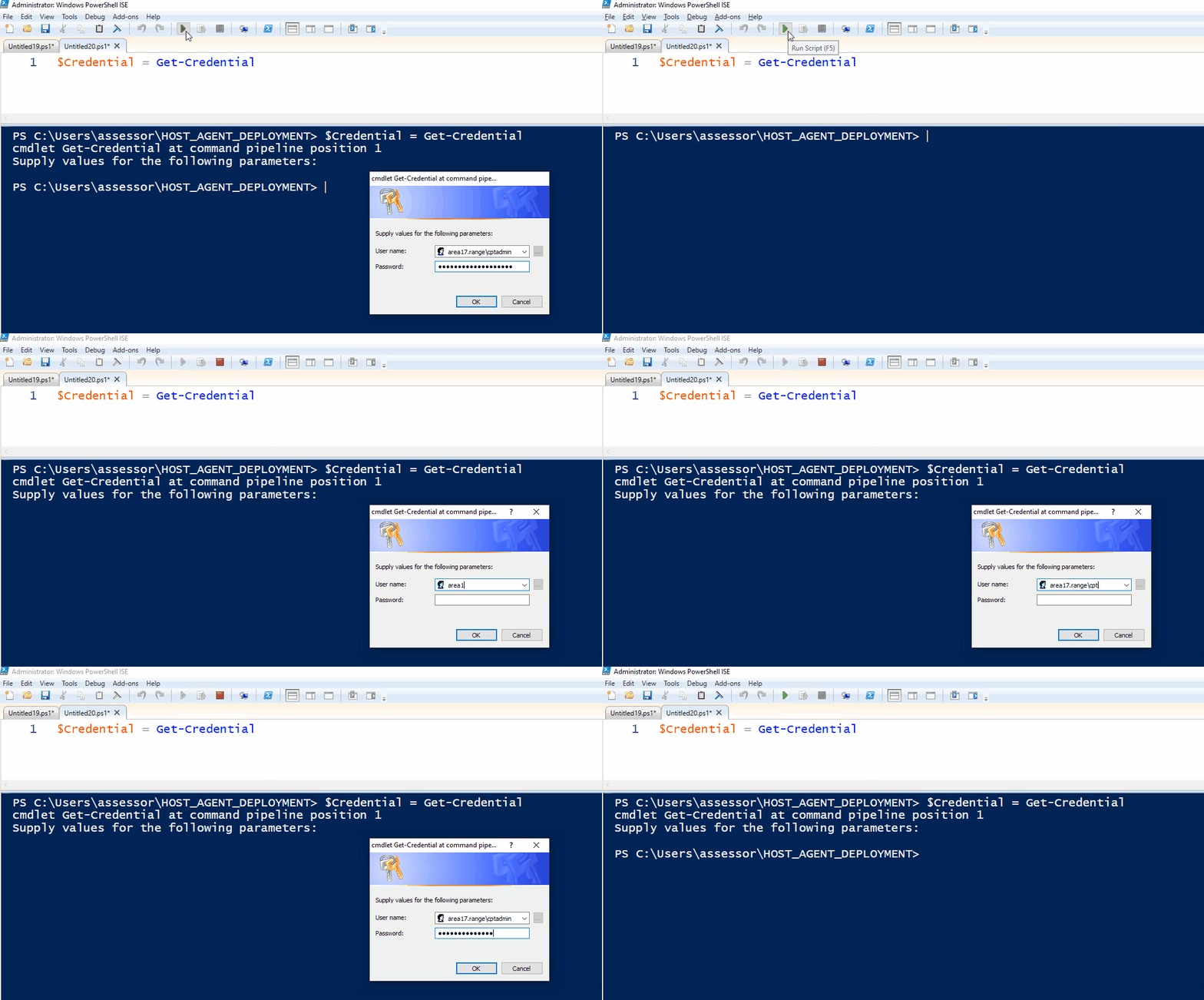
Step 2: PSDrive Connection
-
Store the target host's FQDN or IP address in a variable and create a random arbitrary name for the PSDrive:
$Target = '<IP/FQDN>'
$DriveName=$([Guid]::NewGuid().Guid.ToString()) -
Establish an SMB session to the target's
C$share (this can be any share you want):$PSDrive = New-PSDrive -Name $DriveName -PSProvider FileSystem -Credential $Credential -Root "\\$Target\C$"Cleanup Unused SMB ConnectionsIn order to not leave open hanging SMB connections, cleanup after yourself with this command:
Remove-PSDrive $PSDrive
Filesystem Interaction
Unlike $PSSession, you do not need to reference the $PSDrive in order to interact with the remote filesystem - instead the remote filesystem can be referenced as a UNC path such as \\$Target\C$\<REST_OF_PATH>. Once connected, the remote filesystem can be interacted with via any filesystem based PowerShell cmdlet.
Enumerating Remote Directories
Get-ChildItem "\\$Target\C$"
File Upload
Copy-Item -Path .\Sysmon64.exe -Destination "\\$Target\C$\Program Files\Sysmon\"
File Download
Copy-Item -Path "\\$Target\C$\Windows\Temp\malware.exe" -Destination .\
Deleting Remote Files
Remove-Item -Path "\\$Target\C$\Windows\Temp\malware.exe" -Force