Execution
Start Kismet
gpsmon and xgps only serve to assist in troubleshooting GPS issues and are not required for Kismet to function.
-
Ensure the GPS service is running:
sudo systemctl restart gpsd -
(Optional) Ensure that GPS monitoring tools are running in their own windows:
sudo gpsmonsudo xgps -
Start the Kismet service:
sudo systemctl restart kismet -
Navigate to the Kismet web UI at
http://localhost:2501within the Kali VM. If logging into Kismet for the first time, configure the initial logon credentials forassessor: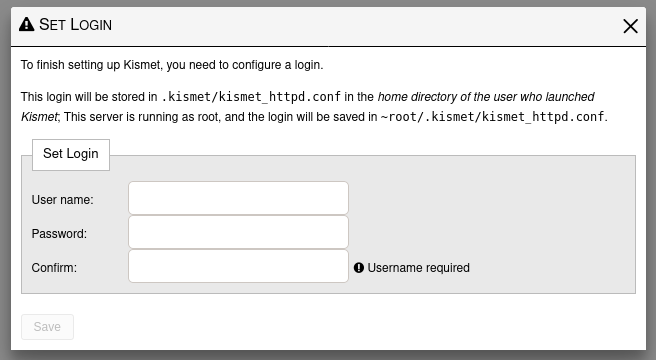
-
Click on the "target" icon in the top right corner of the web UI to verify that Kismet is receiving GPS data:
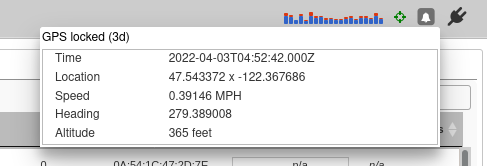
When the "target" icon is green then GPS is tracking, if it turns gray then you do not have adequate GPS signal.
War-Drive
Slower movement while war-driving will allow Kismet to collect more data on Wireless SSIDs and result in a more precise assessment of the physical locations of their access points.
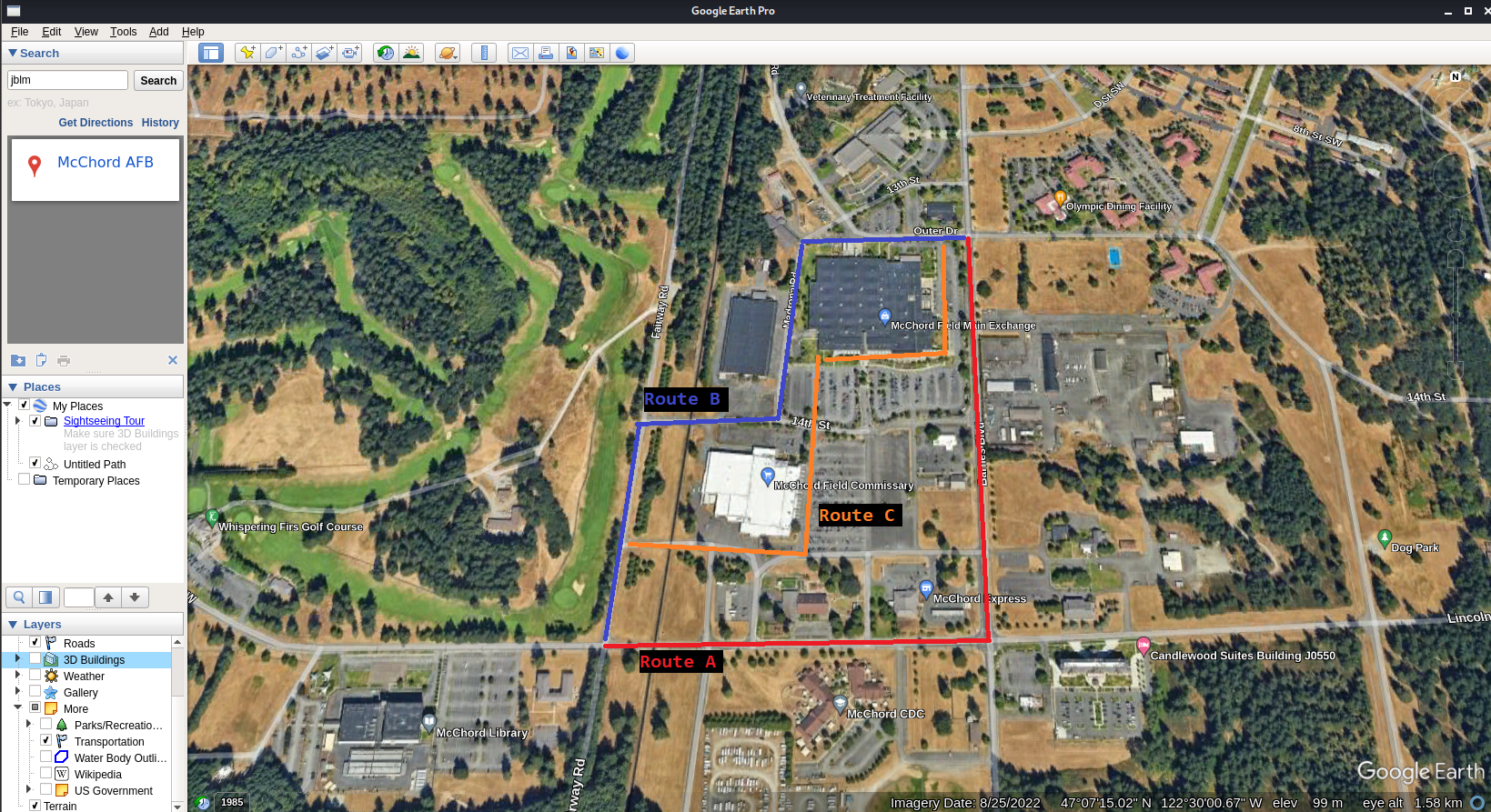
Plot the route
It is recommended to pre-plan the route you will take to war-drive. This can be as simple as taking a screenshot of the area in Google Earth and using MS paint to draw routes indicating different portions of your route. For longer routes that will be conducting via walking, the route should be broken into portions - to account for the MIP battery potentially dying at different points.
Walk/Drive
Walk/drive around the targeted area with the MIP (GPS dongle and Wi-Fi adapter attached) to allow Kismet to detect Wireless access points as you traverse.
Produce log files
When complete, stop kismet so that it produces a .kismet log file in /var/log/kismet
sudo systemctl stop kismet
Executing sudo systemctl restart kismet will cause Kismet to produce a log file and immediately start a new one