Gigamon GTP-ASF01 SOP
Prerequisites
- 1 Gigamon GTP-ASF01 TAP
- 1 Gigamon GTP-ASF01 power supply
- 4 SFPs (ex. 4x 1GB Dell Copper SFPs)
- 4 network cables
- 1 MIP [/w power supply]
- 1 USB NIC
- 1 USB serial cable
Pre-Execution Checks
- Make sure to test functionality of TAP with specific SFPs before you implement on Mission Partner system
- Ex. Set up successful ping between two devices and then implement your TAP solution to verify you are still getting a successful ping
- Verify you can capture the traffic from the two analysis ports using the steps listed in the Steps section
- Ex. Set up successful ping between two devices and then implement your TAP solution to verify you are still getting a successful ping
- If you need to configure or verify configuration use USB to serial dongle
- Serial port is the top left port when facing the device
- 115200 bps everything else default
- Default vendor password is
root123
Steps
Setup MIP
- identify the interfaces you're going to use using
ip linkOR the setup script- use
ip linkto identify interfaces - use the 262COS RHEL Setup Script found on the desktop
- choose
[3] Configure RHEL networking - take note of the interfaces listed at the top
- plugin the USB NIC
- choose
[R] refresh displayed status - take note of the interfaces listed at the top
- choose
- use
- Set both MIP NICs IPv4 and IPv6 settings to
disable - If you're using external storage, mount and get that drive's path (
lsblk)
Setup Tap
- Identify where you want to listen to on the Mission Partner Network(MPN).
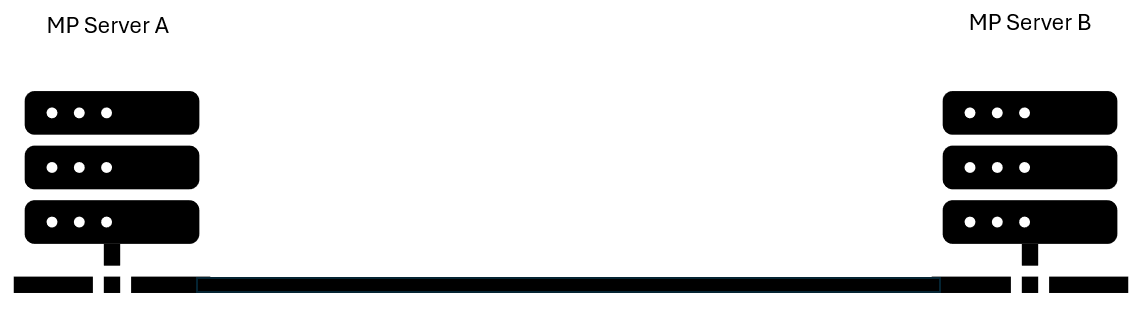
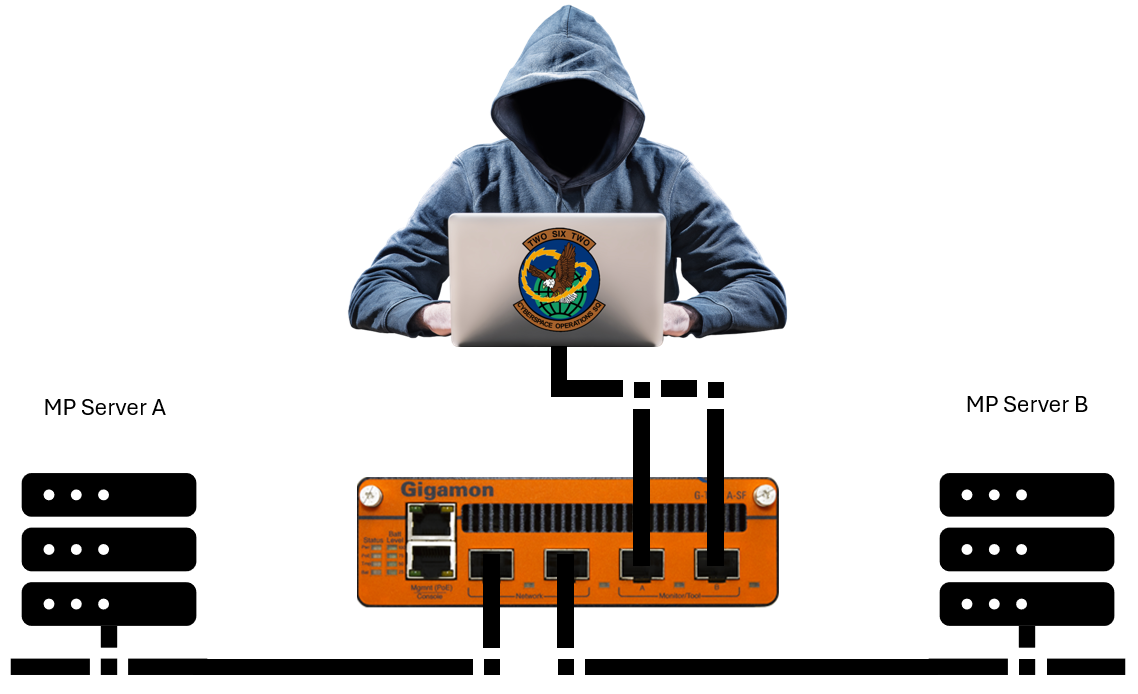
- Disconnect the connection you want to TAP and reroute traffic through the device as shown below
- Analyst MIP will connect to both monitor Ports using USB NIC and onboard NIC
Start packet capture
# for permission reasons work out of a dir where ther owning user and group are both root
sudo mkdir ./someWorkingDir
sudo cd ./someWorkingDir
# start the capture and write to files this will write up to 50 x 1GB files
sudo tshark -i <interface1 name> -i <interface2 name> -w filename.pcap -b filesize:1024000 -b files:50
# chown the files to assessor:assessor so we don't have permission issues
sudo chown assessor:assessor ./someWorkingDir/*.pcap
Troubleshooting
tshark: the file to which the capture would be saved (/your/path) could not be opened: Permission denied.- write your files to somewhere in
/tmpor external drive to avoid this permission issue
- write your files to somewhere in