Garland INT1G10CSASP SOP
Prerequisites
- Serial to USB Cable
- 4x patch cables
- Garland TAP (INT1G10CSASP)
- Power Cable
- 1G Copper SFP
- MIP
Pre-Execution Checks
- Make sure to test functionality of TAP with specific SFPs before you implement on Mission Partner system
- Ex. Set up successful ping between two devices and then implement your TAP solution to verify you are still getting a successful ping
- Verify you can capture the traffic from the analysis ports using the steps listed in the Steps section
- Ex. Set up successful ping between two devices and then implement your TAP solution to verify you are still getting a successful ping
- If you need to configure or verify configuration use USB to serial dongle
- 19200 bps everything else default
- Default vendor user is
adminpassword isgtadmin1
Steps
Setup MIP
- identify the interface you're going to use using
ip linkOR the setup script- use
ip linkto identify interfaces - use the 262COS RHEL Setup Script found on the desktop
- choose
[3] Configure RHEL networking - take note of the interfaces listed at the top
- choose
[R] refresh displayed status - take note of the interfaces listed at the top
- choose
- use
- Set MIP NIC IPv4 and IPv6 settings to
disable - If you're using external storage, mount and get that drive's path (
lsblk)
Setup Tap
- Configure network pair at correct speed.
- You want to match the speed of the network traffic you are attempting to TAP with that of your network pair. For example, if you are attempting to TAP the connection of a Workstation you can login and check the speed of the Network Interface Card.
note
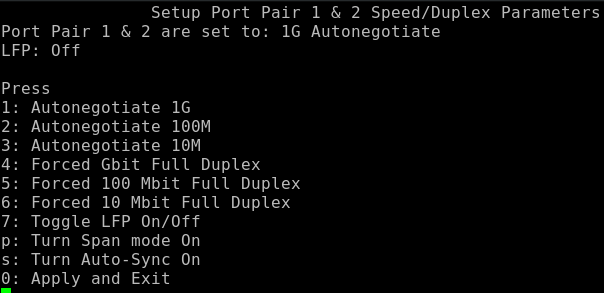
The Garland Tap can be configured to speeds of 10M, 100M and 1G. To change the speed on a network pair you must use putty to serial into the TAP
Bits per second:	19200
Data Bits:		    8
Parity:			    None
Stop:			    1
Flow Control:		None
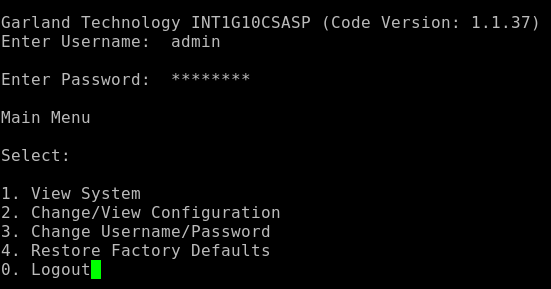
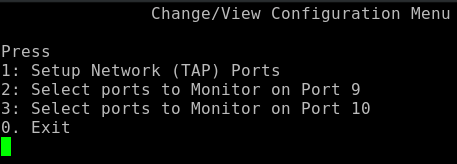
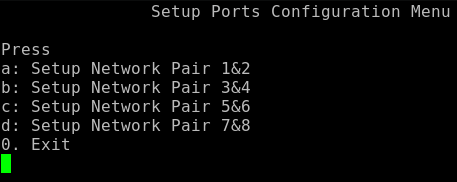
Example of editing the speed of network pairs can be done by following the Main Menu Prompts
-
Select
Change/View Configuration
-
Select
Setup Network (TAP) Ports
-
Select
Network Pair 1&2
-
Select Desired Speed
note
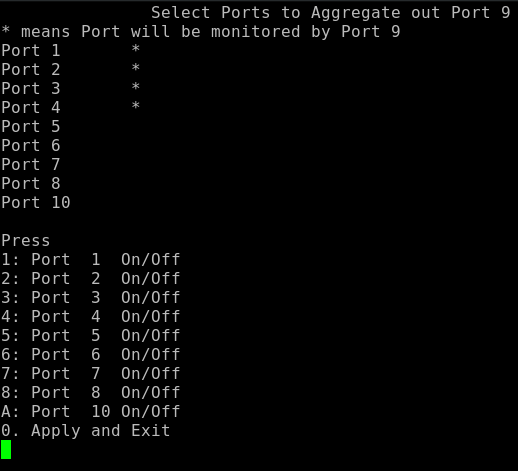
The Garland TAP monitors port on Port 9 and 10. Each of these ports requires an SFP.
The Garland TAP has the flexability to send multiple network pairs to one or both monitor ports. Below is an example of monitor port 9 receiving all data from ports 1 - 4.
Run tcpdump
- To run tcpdump you must know what interface you are using to connect to the TAP. There are multiple ways to do this:
nmcli
ip a
lspci
lshw - Make sure you name the file something that you’ll be able to make out:
- When the PCAP was started
- Where the PCAP was started
- What system/network the PCAP is capturing
Example of tcpdump command:
sudo tcpdump -nn -i eth0 -w 20250430_Guam_Win10Pro.pcap
note
-nn simply makes sure your MIP is not trying to resolve hostnames;
-w save capture to file