2b. Creating Compliance Scan Policies
First, Configure Each Compliance Audit
This step can be very involved as it requires you to create a compliance audit policy for each operating system/software you wish to audit - meaning that you need to know the specific operating systems and software that is present in order to assess which compliance audits need to be performed.
- After performing vulnerability scans, you can use the System Configuration Report to narrow down operating systems and software present in the environment and aid in Audit File Template selection
- Audit files (such as from https://public.cyber.mil/stigs/scap/) can be imported by selecting the Advanced option from the template selection screen
-
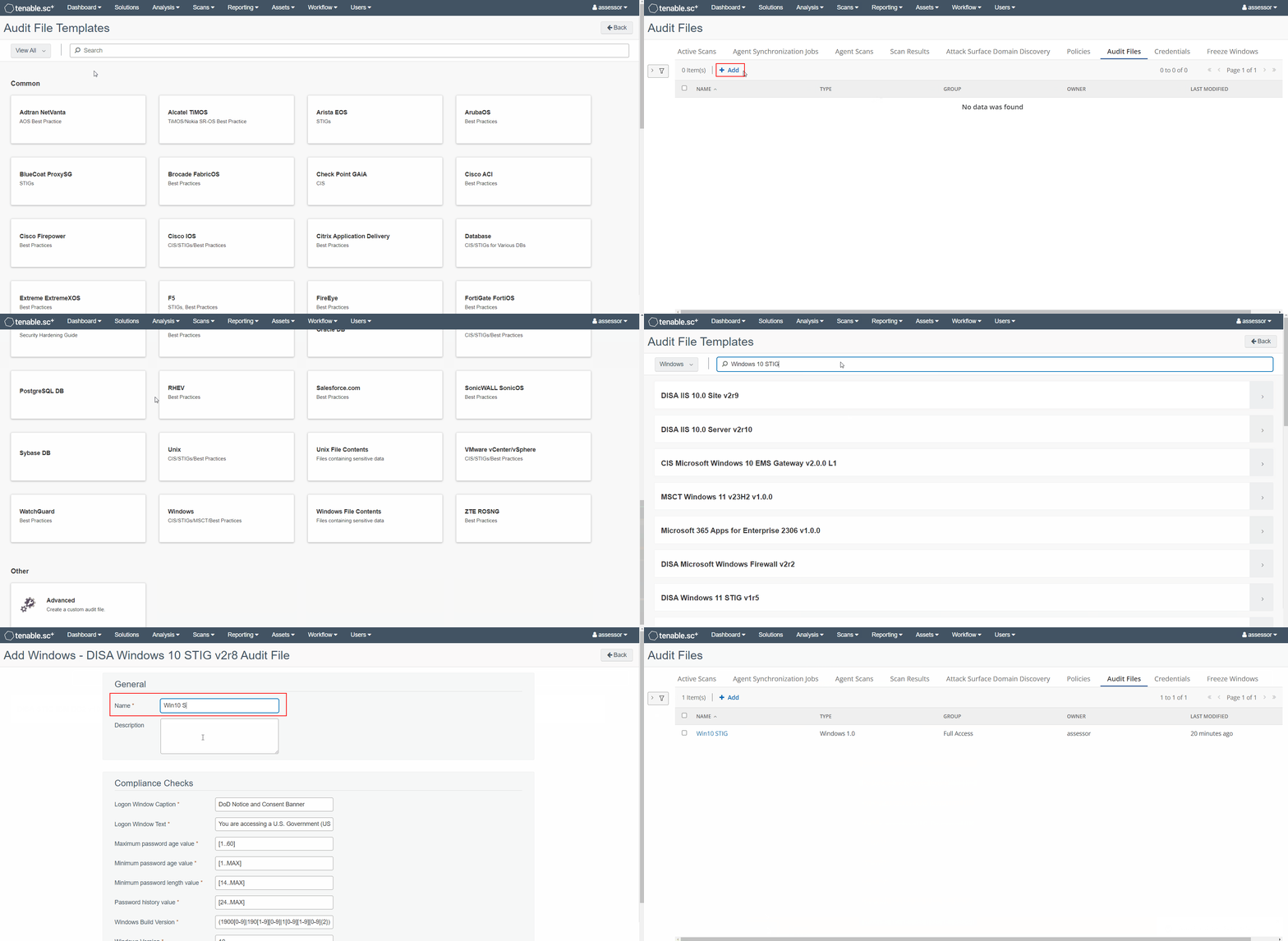
From the top menu bar select Scans, then from the drop-down select Audit Files and click +Add
-
Under Templates, select the category applicable to the type of audit you want to perform
-
From the Add Audit File Template screen, select the specific template that is applicable to your operating system/software target and compliance framework
tip- Select DISA STIGs for assessing USG or DOD assets
- Select CIS benchmarks for assessing any other assets
- Select MSCT for assessing against Microsoft recommended security configuration baselines
-
Assign a Name for the entry appropriate for the policy (it's best to just copy the name of the audit file)
-
Click Submit
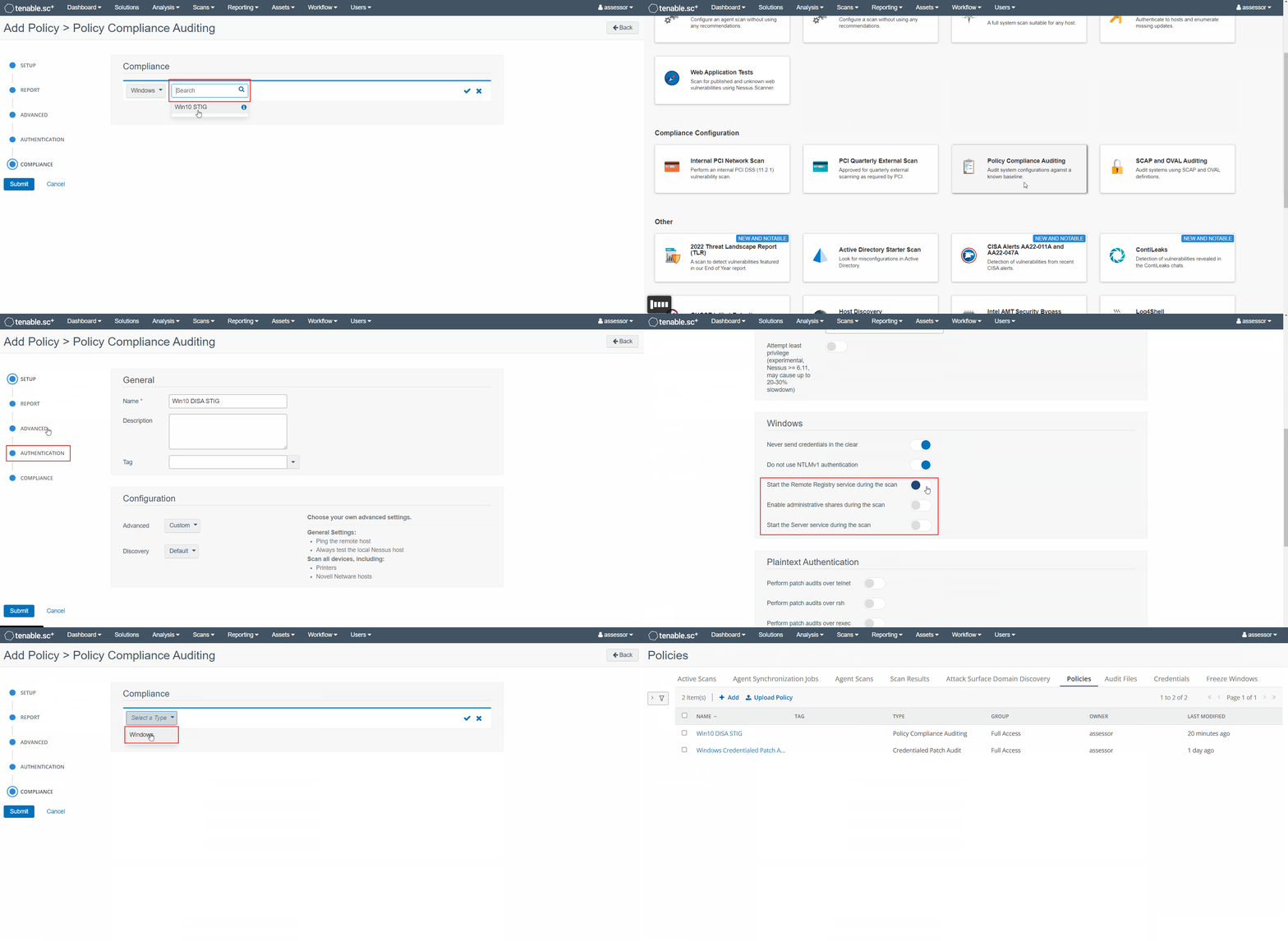
Compliance Auditing Policy
-
From the top menu bar navigate to
Scans -> Policiesand click +Add -
From the Policies select the Policy Compliance Auditing policy template
-
From the Add Policy > Policy Compliance Auditing page:
-
Under the Setup tab:
a) Enter a Name for the policy
b) Set Advanced toCustom -
Under the Advanced tab, enable the following options:
-
Stop scanning hosts that become unresponsive during the scan -
Automatically accept detected SSH disclaimer prompts
-
-
Under the Authentication tab, for Windows hosts, enable the following options:
-
Start the Remote Registry service during the scan -
Enable administrative shares during the scan -
Start the Server service during the scan
-
-
Under the Compliance tab select +Add Audit File and add all of the applicable audits that you want to perform
-
-
Click Submit to complete the configuration