6. Upload Reports To Elastic
note
- For DIPs not configured IAW 262COS-DIP-SOP-001, you will need to login to Kibana and create an Index Pattern for the newly created
acasindex so that the data can be viewed in Kibana. - The
Import-ToElasticsearchscript has the ability to deduplicate entries in Elasticsearch in the case that the same data was mistakenly imported into an index more than once.
-
Copy the
Import-ToElasticsearch.psm1script from262COS-Import_To_Elasticsearch-SCRIPT-001to the Windows VM -
Using PowerShell, navigate to the directory where the script is located.
cd c:\Users\assessor\Desktop\262COS-Import_To_Elasticsearch-SCRIPT-001\ -
Import the
Import-ToElasticsearch.psm1script as a module in your current PowerShell session:Import-Module -Force .\Import-ToElasticsearch.psm1 -
Open a PowerShell terminal and run the imported module against the CSV report that want to import:
Import-ToElasticsearch -URL https://elasticsearch.<KIT_DOMAIN>:9200 -Username <ELASTIC_USER> -Password <ELASTIC_PASSWORD> -Index acas -CsvFile <CSV_FILE(S)> -
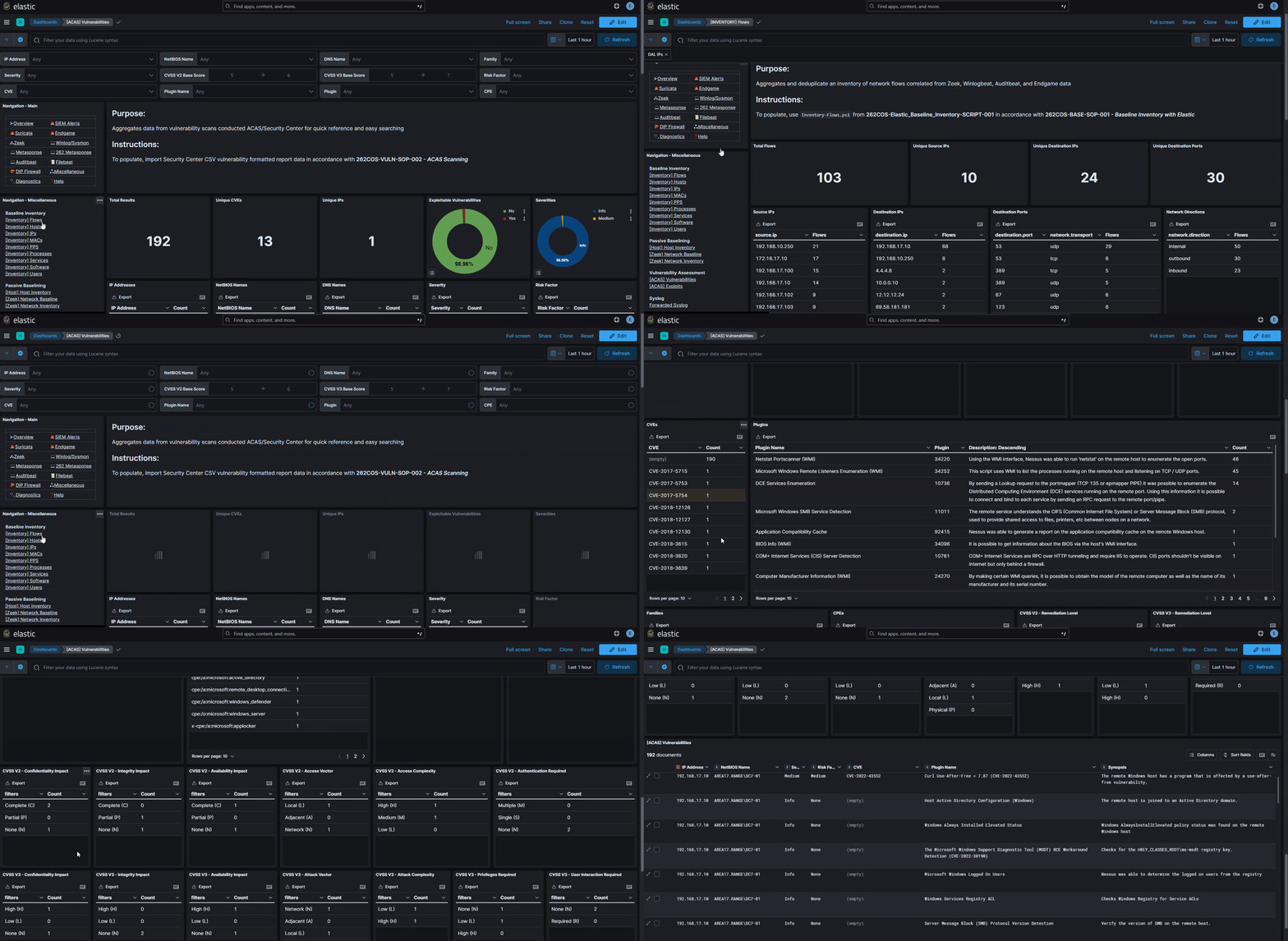
If using a DIP configured IAW 262COS-DIP-SOP-001, you will be able to access dashboards specific to the imported ACAS data through the in-dashboard navigation on the left side and clicking on the
Miscellaneouscategory