STEP 3: Rule Exceptions
Procedures
If the initial triage assessment attributed the alert to CPT, native system, or benign activity – then create Rule Exception(s), to close out all past alerts and prevent future alerts involving the specific benign attributes:
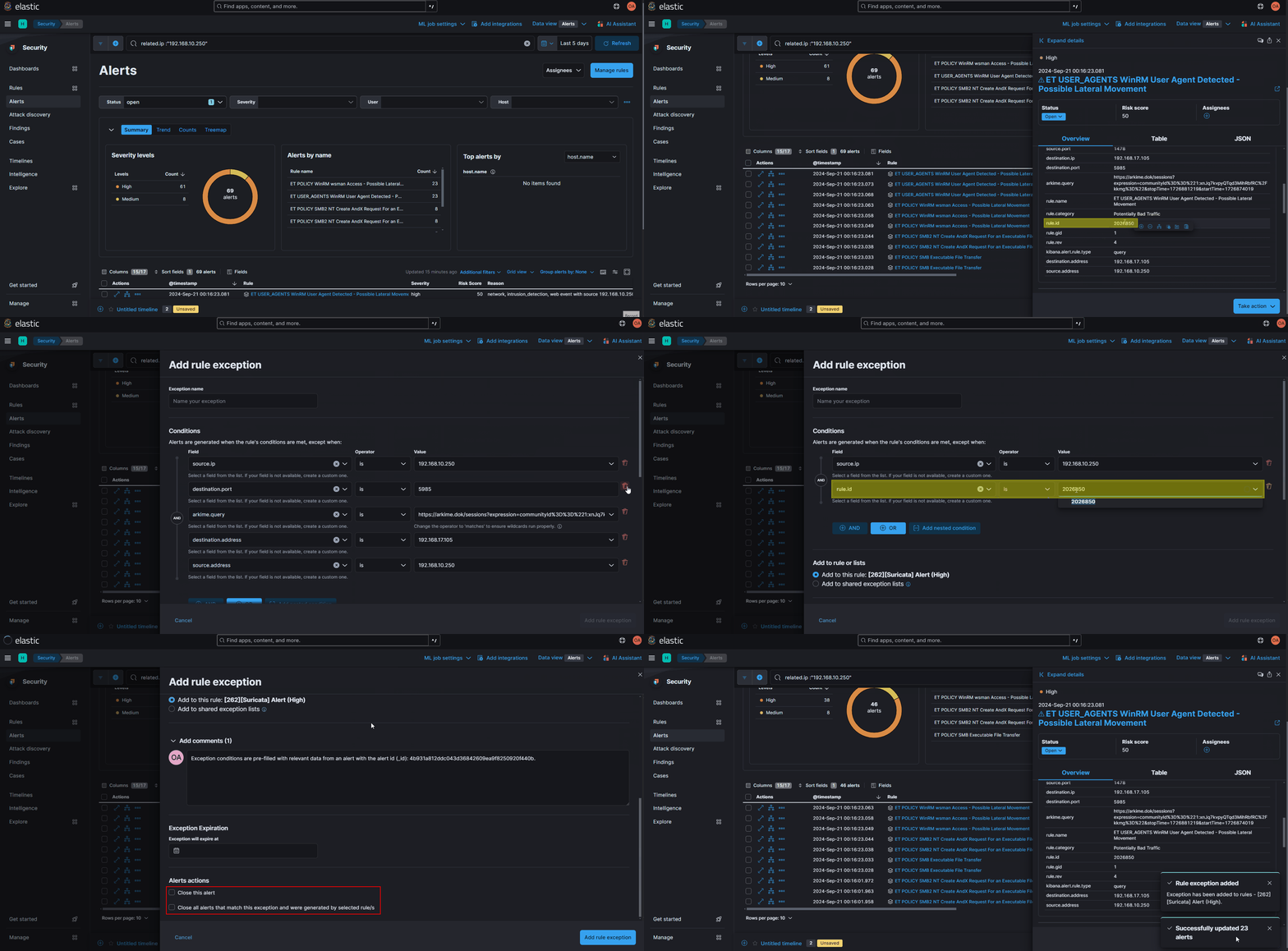
Suricata alerts are a unique case when applying rule exceptions as they all actually trigger from a single Elastic Detection Rule that renames the alert to the specific Suricata rule. As an additional step, you MUST add the specific Suricata rule SID (rule.id) to the exception logic so that you don't apply the exception to ALL Suricata rules (unless that’s the effect you want).
-
Click on the
Alertsbutton in the left-hand menu of the Security app -
Find the alert rule that you want to create an exception for
-
After finding an alert with the name of your targeted rule under the
Rulecolumn (it doesn’t have to be specific to your benign event), click on the three dots and clickAdd rule exception -
Exception name: Give the exception a short, but descriptive title -
Conditions: Add the exception condition logic that you want future alerts to not trigger ontipKibana will pre-populate exceptions with ECS fields that it believes are relevant to the alert - you can use these as a starting point and delete all of the irrelavent rows, or delete them all and start from scratch.
note- The Field selector will only allow you to apply ECS schema fields – otherwise the Add Rule Exception button will remain grayed out
- Exception conditions are applied in almost the same manner as search filters with Field – Operator – Value, except they can have
AND/ORoperator logic applied between them as well as nested groupings - Prior to creating an exception, be sure to experiment with the filter logic you plan to apply with search filters in the (Security) Alerts page
-
(Optional)
Add to rule or lists: If this exception is only meant to be added to the specific rule that triggered the alert, leave this set to the defaultAdd to this rule, otherwise if you want to apply it to an existing Shared Exception List, set it toAdd to exeption listsand toggle the Shared Exception List(s) you want to add it toNOTE: The
[262COS] Global Exception Listwill only apply to all 262COS/DOK developed rules -
Add Comments: Provide an informational comment describing why this exception is being made and what it is intended to filter out -
(Optional)
Exception Expiration: If this a time-period based exception, set a date/time for when the exception will no long be in effect -
Alert Actions: Check the following options to close out benign alerts-
Close this alert -
Close all alerts that match this exception and were generated by this rule
-
-
Click
Add Rule Exceptionto apply the exception - at this point the alert will be closed and no case/ticket needs to be created
Tips
Shared Exception Lists
Adding Shared Exception Lists are useful in scenarios where you want to exclude CPT activity – you would group up exceptions to whitelist CPT user accounts, CPT deployed tool file-paths, CPT IP addresses, etc. and then apply the list to alerts that become noisy vs. individually creating exceptions for each rule as they come up.
Exception Itemsare the exceptions themselves, which can either be added to a Shared Exception List or individually applied to multiple rulesShared Exception Listsare containers that group one or more Exception Items and be applied to multiple rules
-
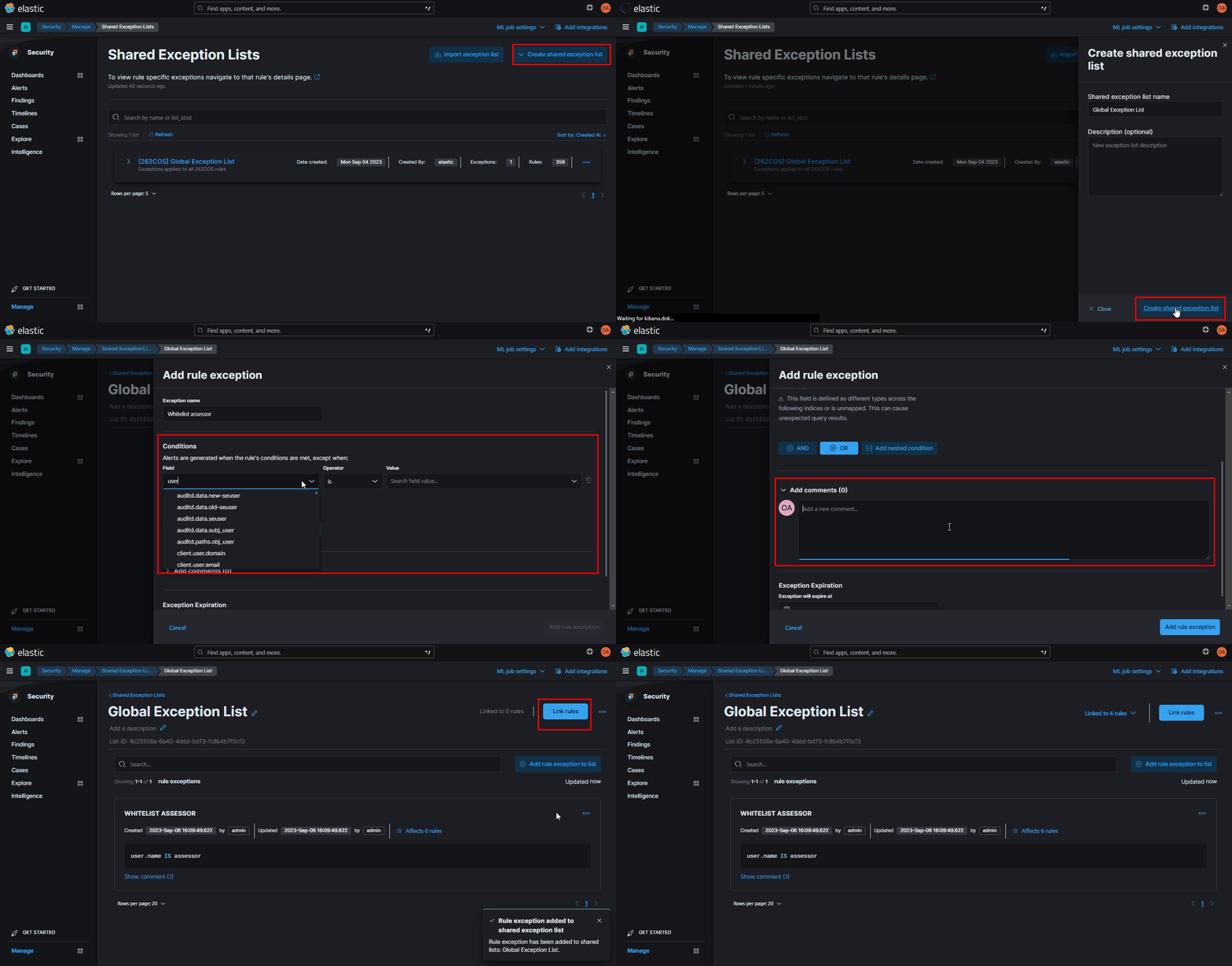
Click on the
Rulesbutton under the Security app -
Click the
Shared exception listsoption from the Rules section -
Click on
Create shared exception list->Create shared list-
Shared exception list name: Enter a name for the list -
Description: Optionally enter a description for the list -
Click on
Create shared exception listto create the list
-
-
Once the list has been created, click on
Add rule exception to listConditions: Add the exception condition logic that you want future alerts to not trigger on
note- The Field selector will only allow you to apply ECS schema fields – otherwise the Add Rule Exception button will remain grayed out
- Exception conditions are applied in almost the same manner as search filters with Field – Operator – Value, except they can have
AND/ORoperator logic applied between them as well as nested groupings - Prior to creating an exception, be sure to experiment with the filter logic you plan to apply with search filters in the (Security) Alerts page
-
Add Comments: Provide an informational comment describing why this exception is being made and what it is intended to filter out -
(Optional)
Exception Expiration: If this a time-period based exception, set a date/time for when the exception will no long be in effect -
Click
Add rule exceptionto apply the exception -
Repeat step
4for each exception that you want to add -
You now have the option to
Link rulesto the Shared Exception List (one-by-one, unfortunately) by clicking theLink rulesbutton in the top-right corner :::