STEP 4: Case/Ticket Creation
Procedures
The threshold and requirements for escalating an alert to the point that it needs to be documented within a Case (Elastic Security) and/or Ticket/Issue (Redmine) is heavily dependant on the Mission Element Lead's preference.
If the initial triage assessment could not be attributed benign activity – then continue to the next step to Create a new Case
Elastic Security Case Creation Procedures:
-
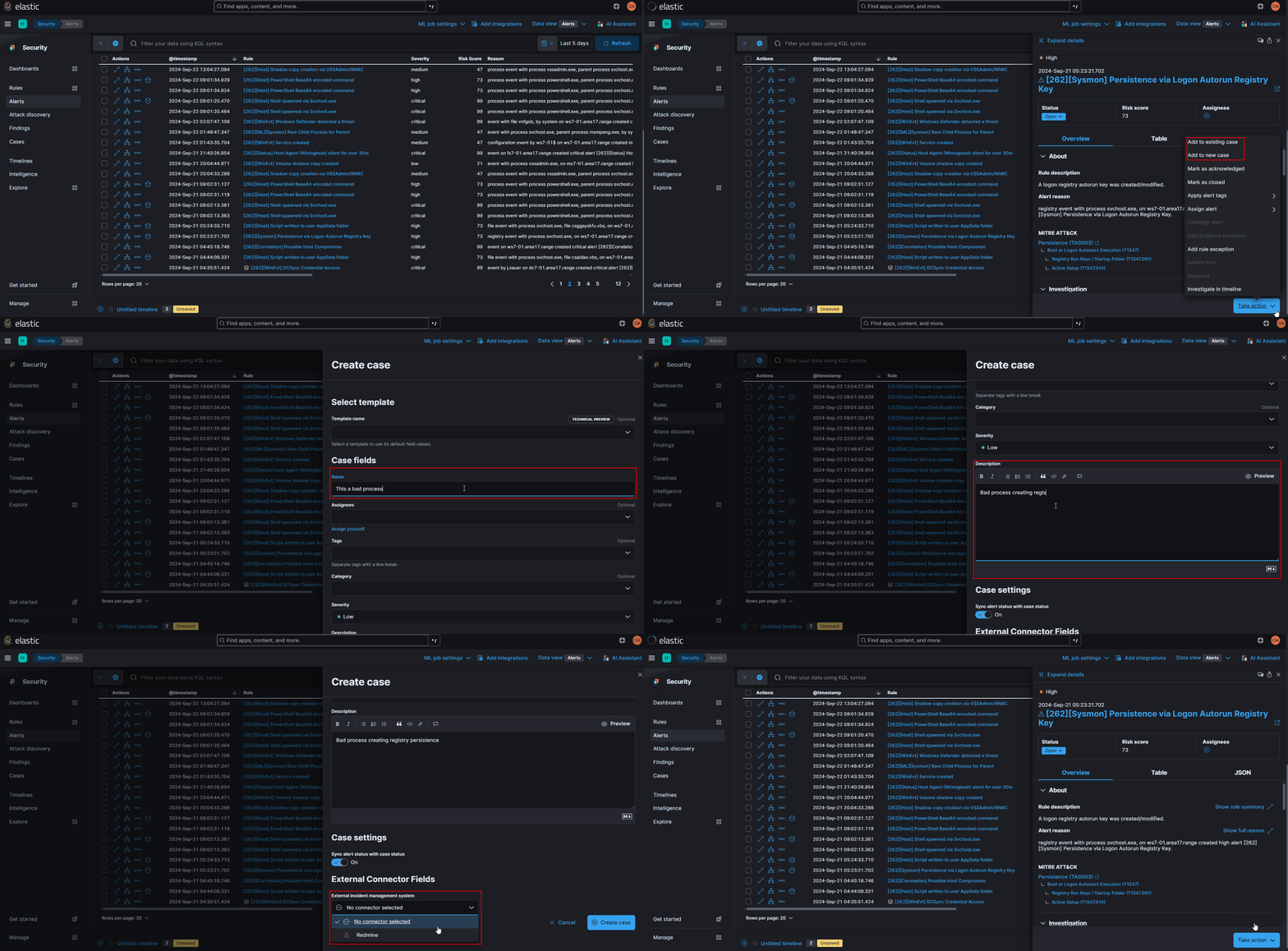
Within the expanded alert details, click on the
Take Actionbutton on the bottom right corner (or click the three dots...in the alerts list) and either:-
Select
Add to existing caseif this alert is being looked at as part of a related investigation or, -
Select
Add to new caseas part of a new investigation
-
-
If creating a new case, fill in the following fields and click
Create Casewhen completed:Field Description Name Enter a unique descriptive name for the Case Assignees Users must have logged into Kibana at least once with their SSO logon to be listed as a potential Assignee Tags Optionally (unless specified by a lead), enter tags for easy identification and categorization of the case Severity Select a severity (this is highly dependent on the alert, lead priorities, and situation) Description A description of the situation so that others do not have to re-analyze the alert for pertinent information - Ensure that
Sync alert status with case statusis toggled on - If available, set the
External incident management systemtoRedmine
- Ensure that
-
If there are more than one
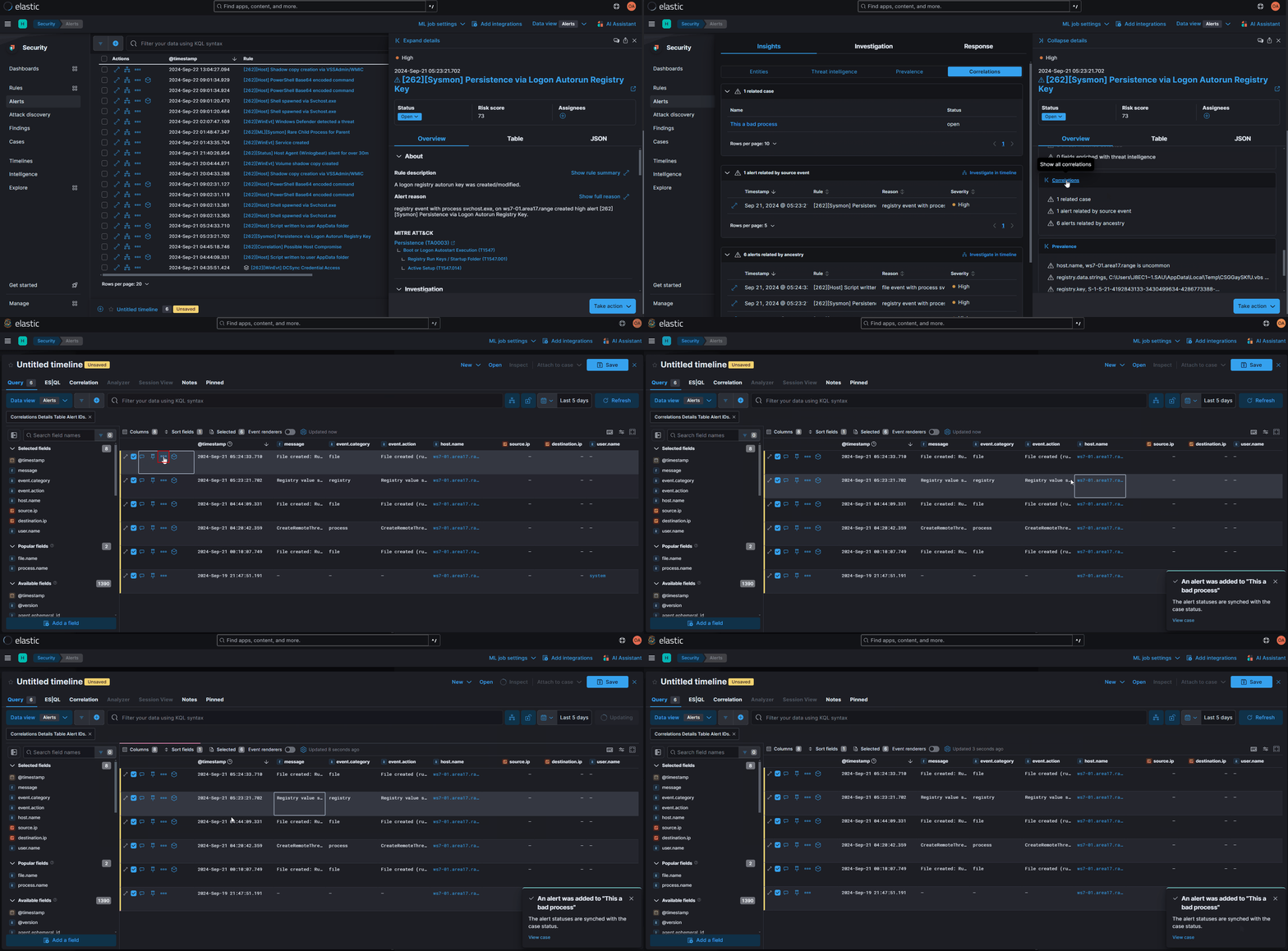
Related alerts by process ancestryunder theInsightssection of the expanded alert details-
Click on the
Investigate in timelinebutton to open up a new timeline containing only those related alerts -
For each alert in the list, click the three dots
...and selectAdd to existing caseand add it to your recently created case
-